
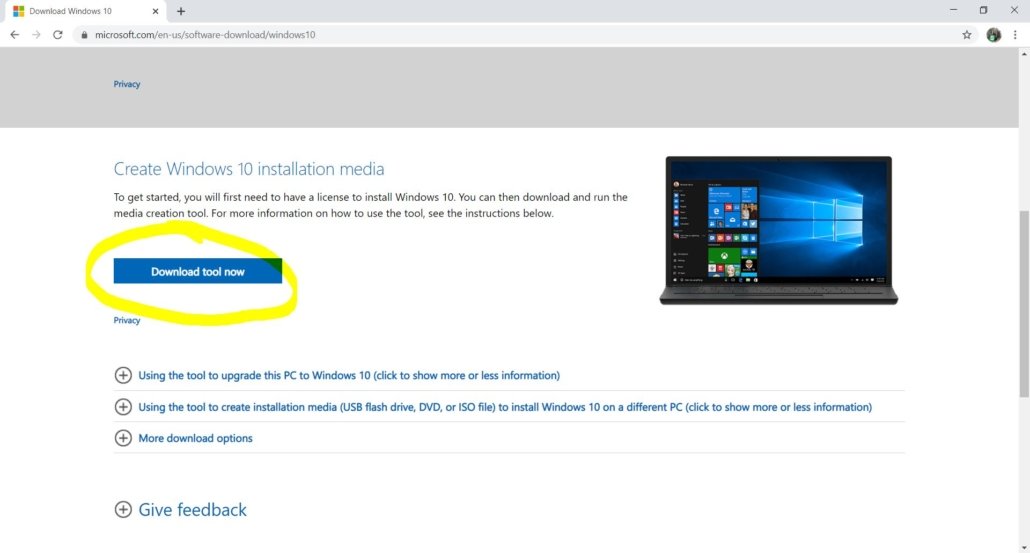
There is a very specific feeling that comes with getting a new computer or reinstalling Windows on an old one. It is a mix of excitement and a little bit of dread. You have this pristine, clean machine in front of you. It runs fast, the desktop is empty, and there is so much potential. But right now, it is also kind of useless. It doesn’t have your files, it doesn’t have your favorite apps, and it keeps asking you to sign up for things you don’t want. The process of taking a “stock” Windows computer and turning it into your computer is what we call software setup. For some people, this is a fun ritual. For others, it is a boring chore that takes all weekend.
Whether you are a gamer, a student, a creative professional, or just someone who needs to check email, setting up your software correctly is the most important thing you can do. If you do it right, your computer will run smoothly for years. If you do it wrong, you will be fighting with pop-up ads, slow performance, and confusing errors within a week. This guide is here to walk you through the perfect Windows software setup. We are going to skip the technical jargon and speak in plain English. We will look at what you actually need, how to get it safely, and how to configure it so that your computer works for you, not the other way around.
Why Updating Windows is the First Critical Step Before Installing Anything
It is very tempting to jump straight into downloading your favorite games or work tools the moment you turn the computer on. You want to see what the machine can do. But you must resist this urge. The very first thing you need to install is not a game or a browser; it is Windows Updates. When a computer sits in a box on a shelf or in a warehouse, it might be there for months. In that time, Microsoft has released dozens of security patches, bug fixes, and performance improvements. If you start installing software on an outdated version of Windows, you are building a house on a swamp. It might sink.
Open your Start menu and type “Check for updates.” Click the button and let it run. It might find a lot of stuff. It might ask you to restart the computer two or three times. This is annoying, I know. It feels like a waste of time. But think of this as laying the foundation. These updates ensure that your computer knows how to talk to the newest printers, how to run the newest graphics, and how to defend itself against the newest viruses. Once you see that green checkmark saying “You are up to date,” you are officially ready to start. This simple step solves about half of the errors people encounter later on. It ensures that when you do install your apps, they have the solid ground they need to run perfectly.
Mastering the Art of Safe Downloads and Avoiding Viruses
The internet is a wild place. Back in the day, we bought software in boxes from a store. It was safe because it came on a disc. Today, we download everything. This is convenient, but it is also risky. One of the biggest mistakes people make during setup is Googling “free PDF reader” or “video player” and clicking the first link they see. Scammers know this. They build websites that look official but actually download “bloatware” or viruses onto your machine along with the tool you wanted.
To stay safe, you need to follow a golden rule: Always download from the source. If you want Chrome, go to https://www.google.com/search?q=Google.com. If you want Spotify, go to Spotify.com. Do not download these apps from third-party sites like “https://www.google.com/search?q=FreePCSoftware.com” or “Downloadz.net.” These middleman sites often bundle the real software with extra junk, like toolbars that change your search engine or programs that claim your computer is infected when it isn’t.
Another great option is the Microsoft Store, which is built right into Windows. It works just like the App Store on your phone. The apps there are checked by Microsoft for safety. While not every app is in the store, many of the big ones are, like Netflix, WhatsApp, and iTunes. Installing from there is one click, and you never have to worry about accidentally downloading a virus. Being a little paranoid during this stage pays off. If a website looks flashy or has five different “Download” buttons, close it. Find the official site. Your computer will thank you.
Choosing the Best Web Browser for Your Speed and Privacy
The first piece of software almost everyone installs is a web browser. Windows comes with Microsoft Edge installed. To be honest, Edge is actually quite good these days. It is fast and secure. However, most people have a preference. Maybe you love Google Chrome because it syncs with your Android phone. Maybe you prefer Firefox because it cares about privacy. Maybe you like Opera for its built-in features.
Installing a browser is usually the gateway to everything else. Once you have your preferred browser, sign in to it. This is a huge time saver. If you use Chrome and sign in with your Google account, it will likely bring back all your bookmarks, your saved passwords, and your history from your old computer. Suddenly, the internet feels familiar again. You don’t have to remember the address of your bank or your favorite news site; they are already there in the bookmark bar.
While you are setting up your browser, take a moment to add an ad-blocker extension. This is a small tool that stops advertisements from loading on websites. Not only does this make reading articles nicer, but it also keeps you safe. Many viruses are spread through “malvertising,” which are fake ads that infect your computer if you click them. An ad-blocker is like a shield for your browser. It makes pages load faster and keeps the junk away.
Essential Productivity Tools for Work and School
Now that you have the internet, you need the tools to actually do things. For most people, this means handling documents. You probably need a way to write letters, make spreadsheets, and read PDFs. The industry standard is Microsoft Office (Word, Excel, PowerPoint), now called Microsoft 365. If you have a subscription, log into your account and download the installer. It will put all the apps on your PC at once.
If you don’t want to pay for a subscription, that is perfectly fine. There are free alternatives that are excellent. LibreOffice is a popular choice. It looks a bit like an older version of Word, but it can open and save all the same files. Google Docs is another option, running entirely in your browser so you don’t have to install anything huge.
You also need a way to handle PDF files. Windows can open them in the Edge browser, which is fine for reading. But if you need to sign forms or fill out applications, you might want a dedicated tool like Adobe Acrobat Reader or Foxit Reader. Be careful when installing these; sometimes they try to install “antivirus” trials you don’t need. Uncheck those boxes. Having a solid office suite set up means that when someone emails you a contract or a homework assignment, you can open it instantly without scrambling to find software.
Setting Up Communication Apps to Stay Connected
In the modern world, our computers are our phones. We use them for video calls, team meetings, and chatting with friends. Depending on your life, you probably need a few specific apps here. If you work in an office, you likely need Microsoft Teams or Slack. If you have family overseas, you might need Skype or WhatsApp. If you are a gamer, Discord is essential.
Don’t just install these apps; set them up. Open them and log in. Check your microphone and camera settings now, before you have an important call. There is nothing worse than joining a meeting late because you have to download an update or because your computer doesn’t know which microphone to use.
Go into the settings of these apps and do a “test call.” Make sure you look good on camera and sound clear. Also, adjust the notification settings. You probably don’t want your computer making a “ding” sound every time someone sends a message in a group chat, especially if you are trying to focus. Turn off the noise so you control the communication, rather than letting it distract you.
Media and Entertainment Players for Music and Movies
Your computer is also your entertainment center. Windows comes with a “Movies & TV” app and a “Media Player,” but they are a bit basic. Sometimes they struggle to play certain types of video files. To fix this forever, I recommend a piece of software called VLC Media Player.
VLC is famous for being able to play absolutely anything. It looks a little plain, like an orange traffic cone, but it is powerful. If you have an old DVD collection, a weird video file from a phone, or a high-definition movie, VLC will play it without complaining. It is free and open-source, which means no ads and no tracking.
For music, you probably stream. Install the desktop app for Spotify, Apple Music, or Tidal. The desktop apps are usually better than using the web player because they let you use the media keys on your keyboard (play, pause, skip) even when the app is in the background. You can be typing a document and skip a song without having to switch windows. It makes the experience seamless.
The Truth About Antivirus and Security Software
Twenty years ago, the first thing you had to do with a new computer was buy a big yellow box of Norton or McAfee antivirus. If you didn’t, your computer would get infected in minutes. Today, things are different. Microsoft realized that people were bad at buying security, so they built a very good one directly into Windows. It is called Windows Security (or Windows Defender).
For 99% of users, Windows Defender is enough. It is free, it is already installed, and it doesn’t slow your computer down. It runs quietly in the background. It scans files you download and blocks malicious websites. You don’t need to pay for a third-party antivirus unless you are doing very high-risk activities.
In fact, installing a heavy third-party antivirus can sometimes make things worse. They often nag you to buy “premium” features, pop up warnings when you are watching movies, and slow down your system scans. Stick with the built-in protection. The best antivirus is your brain—don’t click on weird links in emails, don’t download pirated games, and don’t give your password to strangers. If you do those things, Windows Defender will handle the rest.
Managing Your Files and Backups for Peace of Mind
Now that you have your apps, you need a plan for your files. Photos, documents, and videos are the most valuable things on your computer. Software can be reinstalled, but a lost photo of a wedding cannot be replaced. During setup, you should install a cloud storage service.
OneDrive is built into Windows. If you sign in, it can automatically back up your Desktop, Documents, and Pictures folders. This is magical. If your computer breaks tomorrow, you can buy a new one, sign in, and all your files will reappear. Google Drive and Dropbox do the same thing. Choose the one you already use.
Install the desktop app for your cloud storage. It creates a folder on your computer that looks like a normal folder. Anything you drag into it is instantly beamed to the cloud. You don’t have to remember to “run a backup.” It just happens. This is the ultimate “set it and forget it” step. It turns a potential disaster into a minor inconvenience. Knowing your files are safe lets you use your computer with confidence.
Cleaning Up the Clutter and Customizing Your Look
Your software is installed, your security is on, and your files are safe. Now comes the fun part: making it look like yours. Windows usually comes with a lot of “bloatware.” These are pre-installed apps from the manufacturer (like HP or Dell) or promotional apps like Candy Crush. You don’t need them.
Go to Settings, then Apps. Scroll through the list. If you see something you know you will never use, click Uninstall. Be ruthless. Getting rid of these junk apps frees up space and stops them from running in the background. A cleaner computer is a faster computer.
Then, change the wallpaper. Right-click the desktop and hit Personalize. Choose a picture that makes you happy. Change the colors. Switch to “Dark Mode” if you prefer it—it is easier on the eyes at night. Organize your Start menu. Unpin the tiles you don’t use and pin the ones you do, like your browser and email. When you sit down at your computer, it should feel like a comfortable workspace, not a billboard. Customizing these small things makes a big psychological difference. It signals that you are in control of the machine.
Conclusion: Enjoying Your Optimized Machine
Setting up a Windows computer is a journey. It starts with a generic, empty box and ends with a personalized, powerful tool. It can feel like a lot of steps—updates, browsers, office tools, security, backups—but each step serves a purpose. You are building a system.
By taking the time to do this properly, you are saving yourself hours of frustration in the future. You won’t be interrupted by update messages because you already did them. You won’t lose files because you set up backups. You won’t get viruses because you downloaded from safe sources. You have created a stable, secure environment where you can work, play, and create.
Now, the work is done. Close the settings menus. Open your favorite game, or start that novel you wanted to write, or just browse the web. Your computer is ready. It is fast, it is clean, and most importantly, it is yours. Enjoy the speed and the potential of your new setup. You earned it.