
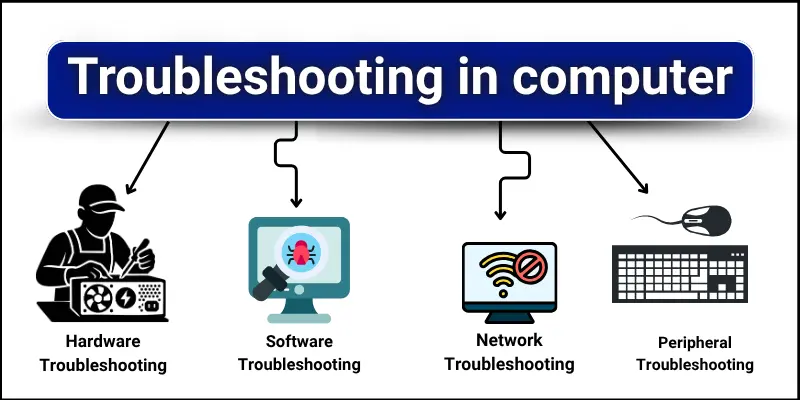
We rely on our computers for almost everything these days. We use them to work, to talk to our families, to watch movies, and to manage our money. When your computer is working perfectly, it feels like a magic window to the world. But when it stops working, it feels like a disaster. We have all felt that sudden panic. You are in the middle of writing an important document, and the screen freezes. You try to move the mouse, but the cursor is stuck. You press buttons, but nothing happens. Or maybe you press the power button, and instead of the happy welcome sound, you hear a loud fan noise and see a black screen. In that moment, you feel helpless. You might worry that you have lost your files or that you will have to spend hundreds of dollars to fix it.
The good news is that most computer problems are not disasters. They are usually just hiccups. Computers are complex machines with millions of lines of code and dozens of hardware parts working together. Sometimes, they just get confused. System and Operating System (OS) troubleshooting is the skill of untangling that confusion. It sounds technical and scary, but it is actually very logical. You don’t need to be a computer genius to fix most issues. You just need patience and a simple process to follow. In this guide, we are going to walk through the most common system problems and how to solve them. We will use simple, plain English to explain what is happening inside your machine and give you the tools to get back to work without tearing your hair out.
The First and Most Important Step: Why Restarting Actually Works
Have you ever called tech support and had them ask, “Have you tried turning it off and on again?” It feels like a lazy answer. It feels like they are brushing you off. But the truth is, restarting your computer is the most powerful troubleshooting tool you have. It fixes about 50% of all computer problems instantly. To understand why, you have to understand how your computer thinks.
When you open a program, your computer loads it into its short-term memory, which is called RAM. As you work, open more tabs, and switch between apps, the RAM gets full. Sometimes, a program doesn’t close properly. It leaves a little piece of itself behind in the memory, like a ghost. These “memory leaks” clog up the system. A restart is like wiping a chalkboard clean. It cuts the power to the RAM, erasing everything in the short-term memory. When the computer starts up again, it has a fresh, clean slate. It reloads the operating system from scratch without any of the old errors or stuck programs.
So, before you try anything complicated, just restart. If your mouse is frozen and you can’t click “Restart,” hold down the physical power button on your computer case for about ten seconds. This forces a “hard shutdown.” Wait a few seconds, then press the button again to turn it on. If the problem is gone, you just saved yourself hours of work. If the problem is still there, then you know it is something deeper, and you can move on to the next step.
Dealing with a Slow Computer: The Task Manager Detective
A slow computer is incredibly frustrating. You click on an icon, and you wait. And wait. And wait. Eventually, it opens, but then typing is slow. This usually means that something is using up all your computer’s resources. Your computer has a limited amount of brainpower (CPU) and memory (RAM). If one program gets greedy and takes 90% of the brainpower, everything else slows down to a crawl.
To find the culprit, you need to use a tool called the Task Manager (on Windows) or Activity Monitor (on Mac). On Windows, you can open this by pressing Ctrl + Alt + Delete and clicking “Task Manager.” On a Mac, press Command + Space and type “Activity Monitor.” When you open this tool, you will see a list of every single process running on your computer. It looks like a lot of gibberish numbers, but don’t be scared. Look at the columns labeled “CPU” and “Memory.”
Click on the top of the “CPU” column to sort the list. The program using the most brainpower will jump to the top. If you see a program you aren’t using taking up 50% or more of the CPU, that is your problem. It might be a web browser with too many tabs open, or it might be a program that crashed in the background. You can click on that program and select “End Task” or “Force Quit.” This kills the greedy program instantly. Your computer should suddenly speed up, like a runner dropping a heavy backpack. Just be careful not to end tasks that look like system files (usually named things like “System” or “Windows Explorer”) unless you are sure, as this can make the screen flicker or force a restart.
The Mystery of the Blue Screen and Unexpected Crashes
The most terrifying sight for a computer user is the Blue Screen of Death (BSOD) on Windows or the Kernel Panic on Mac (a grey screen with a message in multiple languages). This means the operating system ran into a problem so big that it couldn’t continue, so it just stopped everything to protect itself. It feels like a crash, but it is actually a safety measure.
When this happens, your computer will usually restart itself. When it comes back, don’t just ignore it. If it happens once, it might be a fluke. If it keeps happening, you have a real issue. The blue screen usually shows a code in all capital letters near the bottom, like “CRITICAL_PROCESS_DIED” or “MEMORY_MANAGEMENT.” This code is your clue. Write it down or take a picture with your phone.
Go to Google and type in that code along with your computer model. You will likely find forums where other people have had the exact same problem. Often, these crashes are caused by bad drivers (software that talks to hardware) or failing hardware (like a bad stick of RAM). If the error says “Memory Management,” you might need to run a memory test. If it says “Driver Verifier,” you might need to update your drivers. The code is the key that unlocks the solution. Don’t be afraid of the technical words; just look for the pattern in what other people solved.
keeping Your System Healthy with Updates and Patches
We all hate the “Update Available” notification. It always pops up when you are in a hurry. It asks you to restart your computer, and you just keep clicking “Remind Me Later.” You might do this for weeks. This is a bad habit. Software updates are not just about adding new features or changing the look of the icons. They are primarily about fixing bugs and closing security holes.
Operating systems like Windows and macOS are incredibly complex. They are written by humans, and humans make mistakes. Hackers are constantly looking for these mistakes (vulnerabilities) to break into your computer. When Microsoft or Apple finds a mistake, they write a piece of code to fix it and send it to you as an update. If you don’t install the update, your door is left unlocked.
Updates also fix stability issues. If your Wi-Fi keeps dropping or your printer won’t connect, there is a good chance an update will fix it. To check for updates on Windows, go to Settings > Update & Security > Windows Update. On Mac, go to System Preferences > Software Update. Let it download and install everything. Yes, it takes time. Yes, you have to restart. But it is the vitamin C for your computer’s immune system. A fully updated computer is a fast and safe computer.
When Hardware Stops Talking: Fixing Driver Issues
Your computer is made of physical parts: the screen, the keyboard, the Wi-Fi card, the graphics card. The operating system is software. These two worlds speak different languages. To communicate, they use a translator called a “Driver.” A driver is a small piece of software that tells the OS how to use a specific piece of hardware.
If your sound suddenly stops working, or your screen resolution looks stretched and fuzzy, or your Wi-Fi connects but has no internet, you probably have a driver issue. This often happens after a big system update. The OS gets updated, but the driver is still the old version, and they stop understanding each other.
To fix this on Windows, you use the “Device Manager.” Right-click the Start button and select Device Manager. You will see a list of all your hardware. If a device has a problem, it will usually have a little yellow triangle with an exclamation mark next to it. Right-click that device and select “Update Driver.” You can ask Windows to search automatically. If that doesn’t work, go to the website of the manufacturer (like HP, Dell, or Lenovo). Look for a “Support” or “Drivers” section. Type in your laptop model, and download the latest driver for the broken part. Installing it is usually as simple as clicking “Next” a few times. Once the translator is updated, the hardware and software start talking again, and the problem vanishes.
The Invisible Enemy: Scanning for Malware and Viruses
Sometimes, your computer acts weird for no obvious reason. It runs slow, pop-up ads appear on your desktop even when the browser is closed, or your search engine changes to something you didn’t choose. This is the sign of Malware (Malicious Software). Malware is a program designed to harm your computer or steal your data.
You might have clicked a bad link in an email or downloaded a “free” game that came with a hidden virus. Malware runs in the background, eating up your resources and sending your private info to hackers. You cannot fix this by restarting. You need an antivirus scanner.
If you have Windows, you already have “Windows Security” (formerly Defender) built-in. It is actually very good. Open it and run a “Full Scan.” This will take an hour or more, but it checks every single file. If you want a second opinion, you can download a free version of a tool like Malwarebytes. Run the scan. If it finds something, it will quarantine it (put it in a digital jail) and then delete it. After the scan is done, restart your computer. If the slowness and pop-ups are gone, you know you beat the infection. To stay safe, be careful what you click and never download attachments from strangers.
Cleaning Up the Clutter: Managing Disk Space
Computers are like closets. Over time, they get filled with junk. You download a file, look at it once, and forget to delete it. You install a program, use it for a week, and leave it there. Eventually, your hard drive gets full. When a hard drive is nearly full (the bar turns red in the file explorer), the OS struggles. It needs a little bit of empty space to move files around and think. If it has no room to breathe, it slows down drastically.
You need to do some spring cleaning. Start with your “Downloads” folder. This is usually the biggest pile of trash. Delete the old installers, the PDFs you already read, and the duplicate photos. Next, empty the Recycle Bin. People forget that putting a file in the trash doesn’t actually delete it; it just moves it to the trash folder. You have to “Empty Recycle Bin” to get the space back.
On Windows, use a built-in tool called “Disk Cleanup” or “Storage Sense.” Search for it in the Start menu. It will scan your drive for temporary files, old update files (which can be huge), and error logs. You can often free up 10GB or more just by clicking “OK.” On a Mac, go to “About This Mac” > “Storage” > “Manage.” It will show you exactly what is taking up space and help you delete big files. Keeping at least 20% of your drive empty keeps your system happy.
Speeding Up Startup: Stopping Background Programs
Does your computer take five minutes to turn on? Do you have time to make a cup of coffee before you can click anything? This is usually because you have too many “Startup Programs.” These are apps that are set to launch automatically the moment the computer wakes up.
Spotify wants to open so you can hear music. Skype wants to open so you can get calls. Steam wants to open to update games. Your printer software wants to open to check for ink. If twenty programs all try to start at the exact same second, the computer chokes. It’s like twenty people trying to squeeze through a single door at once.
You need to be the bouncer at the door. On Windows, open Task Manager again (Ctrl + Shift + Esc) and click the “Startup” tab. You will see a list of programs. Look at the “Status” column. If it says “Enabled,” that program starts automatically. Look at the “Startup Impact.” If it says “High,” it is slowing you down. Right-click on programs you don’t need immediately (like Spotify or Skype) and select “Disable.” This doesn’t delete the program; it just tells it to wait until you actually click on it to open. On Mac, go to System Preferences > Users & Groups > Login Items. Click the minus sign to remove apps from the list. Your next boot-up will be significantly faster.
The Nuclear Option: System Restore and Factory Reset
Sometimes, despite all your efforts, the system is just too broken. Maybe a virus did too much damage, or a critical system file was deleted. You have tried updating drivers, scanning for malware, and cleaning the disk, but nothing works. It is time for the big guns.
First, try “System Restore” (on Windows) or “Time Machine” (on Mac). This feature takes a snapshot of your computer back when it was working perfectly. If your computer broke yesterday, you can “restore” it to how it was three days ago. It is like a time machine. It undoes any changes made to system files, but it usually keeps your personal documents safe. Search for “Recovery” in the Control Panel to find this.
If that fails, the final step is a “Factory Reset.” This wipes the slate completely clean. It deletes everything—your programs, your settings, and (depending on the option you choose) your files—and reinstalls the operating system as if it were brand new out of the box. This will fix almost any software problem because it removes the software entirely. Before you do this, you MUST back up your photos and documents to an external hard drive or cloud storage, because they will be gone. On Windows, search for “Reset this PC.” On Mac, use “Erase All Content and Settings” or boot into Recovery Mode. It is a drastic step, but it gives you a fresh start.
Conclusion: You Are in Control
Troubleshooting a computer can feel like trying to solve a puzzle in a dark room. It is frustrating, and it is easy to feel stupid. But remember, the computer is just a machine. It is logical. It follows rules. If it is broken, there is a reason, and there is a fix.
Most of the time, the fix is simple. It is a restart, an update, or deleting a bad file. You don’t need to be an expert to do these things. You just need to take a deep breath, read the error message, and follow the steps one by one. By learning these basic troubleshooting skills, you stop being a victim of technology and start being the master of it. You save money on repair shops, you save time, and you gain the confidence to handle whatever digital hiccup comes your way next. So the next time your screen freezes, don’t panic. Just start troubleshooting. You’ve got this.