
There is a very specific feeling you get when you turn on a computer for the first time. It is fast, silent, and completely empty. It feels like a fresh start. You might be tempted to immediately download your favorite games or start working on that big project, but if you do that, you are skipping the most important step. A computer without the right security and utility software is like a house without locks or a broom. It might look nice for a few days, but eventually, the dirt will pile up, and the bad guys will get in.
Setting up your security and utility software is not the most exciting part of owning a computer. It can feel like a chore. It involves passwords, settings, and sometimes waiting for progress bars to fill up. But think of it as building a fortress. If you spend an hour doing this right today, you will save yourself hundreds of hours of frustration later. You won’t have to deal with viruses, lost files, or a slow system. This guide is going to walk you through exactly what you need to install and configure to keep your digital life safe and running smoothly. We will use simple, plain English to explain why these tools matter and how to set them up so they work for you, not against you.
Why Operating System Updates Are Your First Line of Defense
Before you even think about downloading an antivirus or a cleaner app, you have to do the most basic maintenance task of all. You must update your operating system. Whether you are using Windows or a Mac, the software that runs your computer is the foundation of your security. When a computer is built, it gets a version of the operating system installed. Then, it sits in a box, on a truck, and on a store shelf for months. During that time, hackers have found new ways to break in, and the engineers at Microsoft or Apple have written new code to stop them.
If you skip this step, you are connecting a vulnerable machine to the internet. It is like leaving your front door wide open. Go to your settings menu immediately. Look for “Update & Security” or “Software Update.” Click the button that says “Check for Updates.” It might find a huge list of things to install. Let it run. It might ask you to restart your computer. Do it. It might ask you to restart again. Do it again. Keep doing this until it says, “You are up to date.” These updates often include critical security patches that protect you from the latest viruses and spyware. They also include driver updates that make your screen look better and your Wi-Fi run faster. It is boring, but it is the single most effective security measure you can take.
The Truth About Antivirus: Built-in vs. Paid Protection
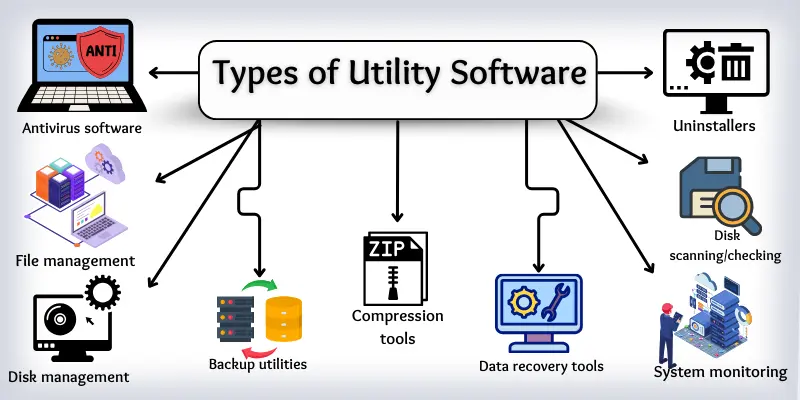
For a long time, the first thing people did with a new PC was buy a big yellow box of antivirus software from the store. If you didn’t, everyone said your computer would explode with viruses in ten minutes. Today, the landscape is very different. If you are using a modern Windows computer, you already have a world-class antivirus installed. It is called Windows Security (formerly Windows Defender).
For ninety-nine percent of users, Windows Security is all you need. It is free, it is already there, and it is very good at its job. It runs quietly in the background, scanning files you download and checking websites you visit. It doesn’t nag you to buy a subscription, and it doesn’t slow down your computer. If you are a standard user who stays on safe websites, you do not need to pay for extra antivirus software.
However, if you engage in high-risk behavior—like downloading files from shady websites or using pirated software—you might want a paid option like Bitdefender or Malwarebytes. These programs are a bit more aggressive. If you do install a third-party antivirus, make sure to go into the settings and turn off the “marketing” notifications. You want the software to protect you, not try to sell you more stuff every time you turn on your computer.
The Absolute Necessity of a Password Manager
You have too many passwords. We all do. You have a login for your email, your bank, your social media, your shopping sites, and your streaming services. A human brain cannot remember fifty different, complex passwords. So, most people make a huge mistake: they use the same password for everything. Or they use “Password123.” This is dangerous. If a hacker steals your password from one weak website, they suddenly have the key to your entire life.
You need a Password Manager. This is a secure digital vault that stores all your passwords for you. You only have to remember one single “Master Password” to unlock the vault. The software does the rest. It will generate crazy, long, secure passwords for you—like “Xy7#b9!zK2″—and remember them so you don’t have to. When you go to a website, the password manager automatically fills in the login box for you.
There are great free and paid options available. Bitwarden is a fantastic free choice that is open-source and very secure. 1Password is a popular paid option that is very easy to use for families. Install the password manager on your computer and get the extension for your web browser. Spend an afternoon going through your most important accounts (email, bank, Amazon) and changing the passwords to new, random ones generated by the manager. It feels like a hassle at first, but once it is set up, you will never have to click “Forgot Password” again.
Securing Your Web Browser with Ad Blockers and Privacy Tools
The web browser is your window to the world, but it is also the main way threats get into your computer. Advertisements are not just annoying anymore; they can be dangerous. Hackers use “malvertising” to hide viruses inside fake ads. You might visit a perfectly normal website, see an ad, and your computer gets infected without you even clicking on it.
To stop this, you should install an Ad Blocker extension. uBlock Origin is widely considered the best one. It is free, lightweight, and very effective. It blocks the ads from loading, which makes web pages load faster and look cleaner. It also blocks the invisible trackers that follow you around the internet to build a profile of your habits.
You should also look at your browser’s privacy settings. If you use Google Chrome, go into the settings and turn off third-party cookies. Consider using a privacy-focused browser like Firefox or Brave if you are worried about big companies tracking your data. These browsers have extra security features built-in that stop websites from fingerprinting your device. By locking down your browser, you are putting a filter on the internet, ensuring that only the good stuff gets through to your screen.
The Life-Saving Habit of Automatic Backups
Hard drives fail. It is a fact of physics. One day, your computer will not turn on. Or you will spill coffee on it. Or it will get stolen. If your photos, documents, and work are only stored on that one machine, they are gone forever. You need a backup strategy, and it needs to be automatic because if you have to remember to do it, you will forget.
The easiest way to do this is with Cloud Storage. Services like OneDrive (which is built into Windows), Google Drive, or Dropbox create a special folder on your computer. Anything you put in that folder is instantly copied to a secure server on the internet. During your setup, sign into one of these services. Tell it to automatically back up your “Desktop,” “Documents,” and “Pictures” folders.
This means that as soon as you save a file, it is safe. If your computer catches fire five minutes later, your work is still safe in the cloud. You can buy a new computer, log in, and all your files will magically reappear. For larger files or a full system backup, you might want to get an external hard drive. On Windows, you can use “File History,” and on Mac, you can use “Time Machine.” Plug the drive in once a week and let it copy everything. Having two copies of your data (one in the cloud, one on a drive) is the only way to be truly safe.
Essential Utility: Handling Compressed Files
Sooner or later, you will download a file that ends in “.zip” or “.rar” or “.7z”. These are compressed files. Think of them like a digital suitcase where someone has stuffed a bunch of files to make them smaller and easier to send. Windows and Mac can open basic ZIP files on their own, but they struggle with the other types.
You need a dedicated archiving tool. The gold standard for this is 7-Zip. It is completely free, open-source, and handles every type of compressed file known to man. It is not the prettiest app in the world—it looks like it was made in 1995—but it is powerful and fast. If you want something that looks a bit more modern, WinRAR is another classic option (and yes, you can use the free trial forever).
Once installed, these tools integrate with your right-click menu. You can right-click a folder and say “Add to Archive” to shrink it down before emailing it to someone. Or you can right-click a downloaded archive and say “Extract Here” to unpack it instantly. It is a small utility that you won’t use every day, but when you need it, you will be very glad you have it installed.
Keeping Your System Clean with Maintenance Tools
Over time, every computer gathers “digital dust.” Browsers save temporary files to load pages faster. Windows saves error logs and update files. Installers leave behind junk after you delete an app. If you don’t clean this up, your fast new computer will eventually become slow and sluggish.
For years, people used a tool called CCleaner. It is still around, but there are better, safer ways now. Windows has a built-in tool called “Disk Cleanup” or “Storage Sense.” Go to your settings and turn on Storage Sense. You can tell it to automatically delete temporary files and empty the Recycle Bin every 30 days. This keeps the junk from piling up without you having to lift a finger.
If you need a deeper clean, especially if you are trying to find what is taking up all your space, a tool like WinDirStat (Windows) or DaisyDisk (Mac) is invaluable. These tools scan your hard drive and show you a visual map of your files. Big blocks represent big files. You can instantly see that a forgotten video file is taking up 10GB of space and delete it. These visualizers help you understand exactly what is on your computer so you can manage your storage effectively.
The Right Way to Uninstall Software
Installing software is easy, but removing it can be messy. When you use the standard “Uninstall” button in Windows, it often leaves things behind. It might leave empty folders in your Program Files, or useless keys in your Registry (which is like the computer’s internal database). Over time, these leftovers can cause errors and slow down your system.
To fix this, you should use a dedicated uninstaller utility. Revo Uninstaller is a favorite among tech experts. There is a free version that is perfect for home users. When you want to remove a program, you open Revo and click uninstall. It runs the standard uninstaller first, but then it goes a step further. It scans your computer for any “leftovers”—files, folders, and registry keys—and deletes them too.
This ensures that when you remove a program, it is truly gone. It is especially useful for stubborn programs that refuse to uninstall properly or keep popping up errors. Keeping your system clean of old, unused software is one of the best ways to maintain performance and security.
Screenshots and Screen Recording for Better Communication
A picture is worth a thousand words, especially when you are trying to explain a computer problem to tech support or show a colleague what you are working on. The default way to take screenshots (Print Screen) is a bit clunky. You often have to paste the image into Paint to save it.
You need a better screenshot tool. Windows now comes with “Snipping Tool” (or Snip & Sketch), which is actually quite good. You can press Shift + Windows Key + S to instantly freeze your screen and draw a box around what you want to capture. It saves it to your clipboard automatically.
If you need more power, like the ability to record video of your screen or add arrows and text to your screenshots quickly, tools like ShareX or Lightshot are excellent. ShareX is free and very powerful. You can set it up so that as soon as you take a screenshot, it uploads it to the internet and copies a link to your clipboard, ready to share in an email or chat. This dramatically speeds up your workflow. Installing a good screenshot utility is one of those small changes that makes using your computer feel much more fluid and productive.
Conclusion: Building a Resilient Digital Home
Setting up your security and utility software might feel like a lot of work. It is not as fun as playing a game or watching a movie. But think of your computer like a car. You can just drive it until the wheels fall off, or you can change the oil, check the tires, and keep it clean. The maintenance you do today determines how the machine runs a year from now.
By following these steps, you are building a resilient system. You have updates to patch the holes. You have a password manager to lock the doors. You have backups to save you from disaster. You have utilities to handle any file type and keep the drive clean. You are not just a user anymore; you are an administrator. You are in control of your technology.
Once this setup is done, you rarely have to think about it again. The backups happen automatically. The antivirus scans quietly. The updates install while you sleep. You can simply enjoy using your computer, knowing that you have built a safety net that will catch you if you fall. So take the time, follow the guide, and give your computer the setup it deserves.