
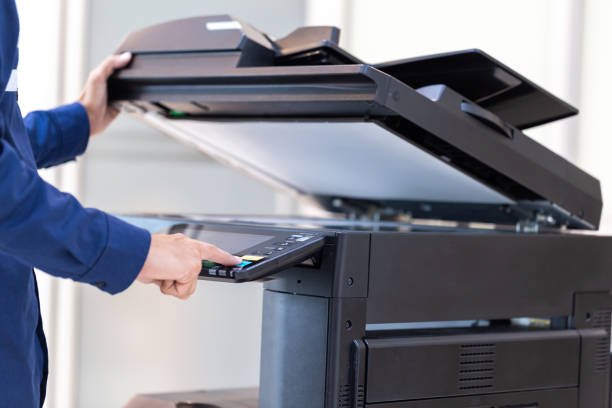
There is a running joke in the world of technology that printers are sent from a different dimension just to annoy us. We have smartphones that can talk to satellites and watches that can measure our heart rate, but somehow, getting a printer to put ink on a piece of paper feels like a battle. You buy a new device, you bring it home excited to organize your office or print your vacation photos, and then you spend three hours staring at a blinking red light. It is frustrating, and it happens to almost everyone.
But it does not have to be this way. Setting up printers, webcams, microphones, and second monitors—what we call “peripherals”—is actually a logical process. The problem is that the instructions in the box are often written by engineers for engineers. They skip the simple steps or use confusing words. This guide is going to change that. We are going to walk through the entire process of setting up your external devices using simple, plain English. We will cover the physical setup, the software magic that makes them run, and the troubleshooting tricks that professionals use. By the time you finish reading, you will be able to plug in any device with confidence, knowing exactly how to make it part of your digital team.
Unboxing and Physical Preparation Don’t Miss the Orange Tape
The setup process begins the moment you open the box. Manufacturers are terrified of things breaking during shipping, so they tape everything down. When you pull a new printer out of the box, it will look like it has been wrapped by a spider made of blue or orange tape. Your first job is to be a detective. You need to find every single piece of this tape and remove it.
Open every door. Pull out the paper tray. Lift the lid where the scanner glass is. Look inside the belly of the printer where the ink goes. You will often find pieces of cardboard or plastic spacers tucked deep inside to stop parts from moving. If you miss one of these and try to turn the printer on, it will make a horrible grinding noise and give you an error message immediately. Take your time. It is not a race.
Once the tape is gone, find a home for the device. This is more important than you think. Printers need space to breathe. They have fans that blow out hot air, and they have paper trays that need to slide out. If you jam it into a tight bookshelf, it might overheat or jam. Also, check the length of the power cable. You do not want the cable to be stretched tight like a guitar string; that is a tripping hazard and can damage the plug. Place it on a flat, stable surface near a power outlet, and plug it in. Do not turn it on just yet; just get it settled in its new home.
The Magic of Drivers Teaching Your Computer to Talk
Now that the device is sitting on your desk, you might think you just plug the USB cable into your computer and you are done. Sometimes that works, but often it does not. This is because your computer and your printer speak different languages. Your computer speaks “Windows” or “macOS,” and your printer speaks “HP” or “Canon.” They need a translator.
This translator is called a “Driver.” A driver is a small piece of software that tells your computer how to control the specific device you just bought. Without a driver, your computer might know something is plugged in, but it won’t know if it is a printer, a toaster, or a spaceship. It won’t know how to tell it to print in color or how to scan a document.
In the past, devices came with a CD-ROM that had the drivers on it. Today, most computers don’t even have CD drives. The modern way to get drivers is to let the internet do the work. When you plug a USB device in, your computer will usually search the web automatically. You will see a little notification saying “Setting up device.” Wait for this to finish. If it says “Device ready,” you are lucky; the computer found the translator on its own. If nothing happens, or if it says “Driver not found,” you need to go to the manufacturer’s website. Look for a “Support” or “Downloads” section, type in the model name written on the front of your device, and download the “Full Driver Package.” Run that file, and it will install the translator for you.
Wired vs Wireless Choosing the Right Connection for You
You have two main ways to connect a printer or peripheral: with a wire or without one. The wire is usually a USB cable. It is the square-ish plug that goes into the printer and the flat rectangular plug that goes into the computer. This is the “Old Reliable” method. It almost always works. The signal doesn’t get lost, and you don’t need passwords. If your printer sits right next to your computer and you are the only person who uses it, use the cable. It saves you a lot of headaches.
However, we live in a wireless world. Most people want to print from their laptop in the living room or their phone in the kitchen. For this, you need Wi-Fi. Connecting a printer to Wi-Fi can be tricky because printers usually have tiny screens and only a few buttons. You have to type your Wi-Fi password using arrow keys, which takes forever.
A better way is the “WPS Button” method. Look at your internet router (the box that gives you Wi-Fi). It probably has a button labeled “WPS.” Press that button. Then, go to your printer and press the “Wireless” button. They will search for each other and connect automatically without you typing a password. It is like magic. If that doesn’t work, you will have to use the printer’s menu to find your network and type the password manually. Remember, the printer must be on the same Wi-Fi network as your computer. If your house has “Guest Wi-Fi” or a 5GHz and a 2.4GHz network, make sure everyone is on the same one, or they won’t be able to see each other.
Loading Ink and Paper The Delicate Dance
Printers are hungry machines. They need fuel. Before you can print, you need to feed them ink (or toner) and paper. This sounds simple, but it is where many people break their new machines. Ink cartridges usually come with a bright orange plastic cap or a piece of tape covering the nozzle. You must remove this before putting it in. If you leave the tape on, the ink can’t come out, and the printer will think it is empty.
Open the access door. Usually, the little carriage that holds the ink will slide into view automatically. It is waiting for you. Look at the slots. They are usually color-coded. There will be a black dot for the black ink and a colored dot for the color ink. Do not force the cartridge. It should slide in easily and click into place. If you have to push really hard, you are probably putting it in upside down or in the wrong slot.
Paper is easier, but still requires care. Do not just grab a stack of paper and shove it in. Fan the paper first. This means flipping through the stack with your thumb like a deck of cards. This separates the sheets and introduces a little air between them, which stops the printer from grabbing two sheets at once (a paper jam). Slide the paper guides—the little plastic fences in the tray—until they touch the edges of the paper gently. If they are too tight, the paper will bend. If they are too loose, the paper will go in crooked.
Setting Up Scanners and Multifunction Devices
Most printers today are actually “All-in-Ones.” They print, they scan, and they copy. The printing part usually sets up automatically, but the scanner often needs extra steps. Scanning is a different process because it sends a picture from the printer to the computer.
To make this work, you usually need the specific software from the manufacturer (like HP Smart, Epson Scan, or Canon Utilities). Windows and Mac have built-in scanning apps, but they are very basic. They might let you scan a page, but they won’t let you turn it into a searchable PDF or edit the text.
Go back to that manufacturer’s website where you found the driver. Look for the “Software” or “Utility” section. Download the scanning app. Once installed, open it and see if it finds your scanner. A good test is to put a photo on the glass and hit “Preview.” If you hear the machine whirring and see an image appear on your screen, you win. If not, you might need to check your firewall settings. Sometimes, security software thinks the scanner is a stranger trying to hack your computer and blocks the connection. You have to tell your antivirus that the scanner is a friend.
Keyboards Mice and Other Bluetooth Gadgets
Not all peripherals are printers. You might have bought a fancy wireless keyboard, a gaming mouse, or a headset. These usually connect via Bluetooth or a small USB “dongle.” The dongle is the easiest method. It is a tiny USB plug that comes in the box. You plug it in, turn on the mouse, and it works instantly. The dongle and the mouse are married at the factory; they only have eyes for each other.
Bluetooth is a little different. It is like a dating game. You have to introduce the device to the computer. First, put the device in “Pairing Mode.” There is usually a small button on the bottom of the mouse or keyboard. Hold it down for three to five seconds until a light starts flashing rapidly. This light is a signal saying, “I am single and looking for a connection!”
Then, go to your computer. Open “Settings,” find “Bluetooth,” and click “Add Device.” Your computer will start scanning the room. You should see the name of your mouse or keyboard pop up on the list. Click it. Sometimes it will ask you to type a code on the keyboard to prove it is yours. Once you do that, the flashing light will stop, and the device will connect. If it feels laggy or slow, check the batteries. Wireless devices start to act weird when their batteries are low long before they actually die.
Configuring Webcams and Microphones for Clarity
Since remote work became common, webcams and microphones are essential. Plugging them in is easy—usually just a USB cable—but making them look and sound good takes work. The biggest issue people face is that the computer doesn’t know which camera to use. If you have a laptop, it already has a camera built into the screen. When you plug in a new, better webcam, the laptop might keep using the old one.
You have to go into the settings of your video app (like Zoom, Teams, or Skype). Look for “Video Settings.” There will be a dropdown menu labeled “Camera.” Click it and select your new webcam from the list. Do the same for “Microphone.”
You also need to check privacy settings. Modern computers are very protective. They have a “kill switch” that blocks all apps from using the camera to stop hackers from spying on you. If your screen is black even though the camera is plugged in, go to your computer’s “Privacy Settings.” Look for “Camera” and make sure the switch that says “Allow apps to access your camera” is turned ON. Also, check the physical lens on the webcam. Many new models come with a plastic privacy shutter that slides over the lens. Make sure you slide it open!
The Test Run Why You Should Always Print a Test Page
You have removed the tape, installed the drivers, loaded the paper, and connected the Wi-Fi. You are ready to go. But before you try to print that important 50-page contract, do a test run. Most printer software has a button that says “Print Test Page.”
Click it. This page is designed to test every part of the printer. It uses all the colors (Cyan, Magenta, Yellow, Black) to make sure the ink is flowing. It prints text at the very edges of the page to make sure the alignment is straight.
Look at the page closely. Are the lines straight? If they look like a staircase, you need to run the “Head Alignment” tool in the printer software. Are the colors streaky? You might need to run the “Head Cleaning” tool. Doing this now saves you from wasting expensive paper later. It confirms that the computer and the printer are talking correctly and that the hardware is physically ready to work. It is the final stamp of approval on your setup.
When Things Go Wrong Simple Troubleshooting Tricks
Even with the best instructions, things can go wrong. Maybe the printer says “Offline” even though it is turned on. Maybe the mouse disconnects every five minutes. Do not panic. You can fix this.
The number one trick in the IT world is the “Power Cycle.” Turn everything off. Turn off the printer. Turn off the computer. Turn off your Wi-Fi router. Wait for thirty seconds. Then, turn the router back on and wait for the lights to stabilize. Turn on the computer. Turn on the printer. This forces all the devices to shake hands and introduce themselves again. It clears out any digital confusion.
If a USB device isn’t working, try a different port. Sometimes the ports on the front of a computer case are weaker or disconnected; try the ones on the back directly on the motherboard. If a Bluetooth device won’t connect, tell your computer to “Forget” the device and then pair it again from scratch. It is like renewing their vows. If a printer is stuck, check the “Print Queue” on your computer. Sometimes one bad document gets stuck in line and blocks everyone behind it. Click “Cancel All Documents” to clear the traffic jam, and try again.
Conclusion You Are Now the Tech Support Expert
Setting up peripherals can feel overwhelming because there are so many pieces involved—wires, signals, software, and ink. But if you break it down into steps, it is just a checklist. You unbox, you connect, you install software, and you test.
By taking the time to set these devices up correctly, you are building a workspace that works for you. You won’t have to fight with the printer every time you need a shipping label. You won’t look blurry on your video calls. Your mouse will move smoothly. You have taken a collection of plastic and metal boxes and turned them into a functional, productive system.
So the next time you buy a new gadget, don’t leave it in the box for weeks because you are dreading the setup. Open it up. You have the knowledge now. Find the drivers, peel off the orange tape, and get connected. You are the master of your machine, and with a little patience, you can make any device part of your digital family.