
There is something incredibly satisfying about a brand new Mac. You open the lid, the screen lights up instantly, and everything feels snappy and responsive. Apps bounce open in a split second, the fan is silent, and the battery seems to last forever. But as time goes on, that “new computer” feeling starts to fade. Maybe you notice the spinning beach ball of death appearing more often. Maybe your storage is full of mysterious “System Data” that you cannot seem to delete. Or maybe you are planning to sell your faithful machine to upgrade to a newer model and need to wipe your personal data completely.
Whatever the reason, installing or reinstalling macOS is the solution. It is the digital equivalent of a deep spring cleaning. It wipes away the cobwebs, deletes the junk files you didn’t know you had, and installs a pristine, perfect copy of the operating system. For many people, the idea of erasing their computer is terrifying. You might worry about losing your photos, breaking the machine, or getting stuck in a technical nightmare. But here is the good news: Apple has made this process incredibly user-friendly. You do not need to be a computer wizard to do it. You just need a little bit of patience and a clear guide. This blog post is that guide. We are going to walk through the entire process in simple, plain English, ensuring you feel confident and in control every step of the way.
Why You Might Need a Fresh macOS Install
Before we dive into the “how,” let’s talk about the “why.” Reinstalling your operating system sounds like a nuclear option, and in some ways, it is. So why would you do it? The most common reason is performance issues. Over years of use, computers accumulate digital clutter. Old updates, leftover files from apps you deleted years ago, and corrupted settings files can pile up. This clutter acts like a heavy backpack on a runner, slowing everything down. A fresh install removes that backpack. It gives the processor and memory a clean slate to work with, often making an old Mac feel brand new again.
Another major reason is selling or gifting the computer. If you are giving your Mac to a friend, a child, or selling it to a stranger, you absolutely must wipe it first. You do not want the new owner to have access to your passwords, your photos, or your Apple ID. A proper reinstallation ensures that your data is gone forever and the new owner gets the “Out of Box Experience,” just like when you first bought it. Finally, sometimes things just break. A bad software update or a deep system error can cause glitches that simple troubleshooting can’t fix. In these cases, reinstalling the OS is the ultimate repair tool. It replaces the broken system files with fresh, working ones from Apple.
The Golden Rule Backing Up with Time Machine
I cannot stress this enough: do not proceed until you have a backup. When we say “clean install,” we mean erasing the hard drive. Everything will be deleted. Your documents, your music, your emails, and those precious family photos will vanish. If you do not have a copy of them somewhere else, they are gone forever.
Fortunately, macOS has one of the best backup tools in the world built right in. It is called Time Machine. All you need is an external hard drive. You can buy one at any electronics store for a reasonable price. Plug it into your Mac. A window will pop up asking, “Do you want to use this disk to back up with Time Machine?” Click “Use as Backup Disk.” That is it. The Mac will take care of the rest. It will copy every single file on your computer to that external drive.
The first backup might take a few hours, so do this overnight or while you are watching a movie. You will know it is done when the Time Machine icon in the menu bar says “Latest backup: Today at [Time].” If you do not have an external drive, you can drag your most important files to a cloud service like iCloud Drive, Google Drive, or Dropbox. Just make sure you double-check that your most irreplaceable files are safe before you move to the next step. Treat this step with the respect it deserves; it is your safety net.
Understanding Recovery Mode Silicon vs Intel
To reinstall macOS, you cannot be inside macOS. You have to boot the computer into a special separate partition called “Recovery Mode.” This is a mini operating system that lives on a hidden part of your hard drive, designed specifically for fixing problems. Getting into Recovery Mode is slightly different depending on which Mac you have.
If you have a newer Mac (from late 2020 onwards) with an Apple Silicon chip (M1, M2, or M3), the process is physical. Shut down your Mac completely. Then, press and hold the power button (which is also the Touch ID sensor on laptops). Keep holding it. You will see the Apple logo appear, but don’t let go yet. Keep holding until you see a screen that says “Loading startup options.” You will see an icon of your hard drive and a gear icon labeled “Options.” Click “Options” and then “Continue.” You are now in Recovery Mode.
If you have an older Mac with an Intel chip, the process uses the keyboard. Restart your Mac, and immediately press and hold two keys: Command (⌘) and R. Hold them down until you see the Apple logo or a spinning globe. If you want to install the version of macOS that came with your Mac (factory settings), hold Shift + Option + Command + R. This is useful if you are selling an old machine and want it to be as “stock” as possible. Once the loading bar fills up, you will see the “macOS Utilities” window.
Wiping the Slate Clean Using Disk Utility
This is the moment of truth. You are in Recovery Mode, and you see a list of options: “Restore from Time Machine,” “Reinstall macOS,” “Safari,” and “Disk Utility.” To do a truly fresh install, we need to wipe the old data first. If you just click “Reinstall macOS” without wiping, it will simply rewrite the system files but keep your user data (which is good for fixing bugs, but not for a clean start).
Click on “Disk Utility” and hit Continue. You will see a list of drives on the left side. The top one is usually called “Macintosh HD.” This is your internal hard drive. Select it. Then, look for the “Erase” button in the toolbar at the top of the window. Click it.
A box will pop up asking for a name and a format. Keep the name as “Macintosh HD” unless you really want to change it. For the format, choose “APFS” (Apple File System). This is the modern standard for Mac hard drives and is faster and more secure than the older formats. If you have a very old Mac with a mechanical spinning hard drive, you might choose “Mac OS Extended (Journaled),” but for 99% of users today, APFS is the correct choice. Click “Erase Volume Group” or “Erase.” The computer will now delete everything. It takes a few seconds. When it is done, you have an empty computer. Close Disk Utility to return to the main menu.
The Installation Process Waiting for the Magic
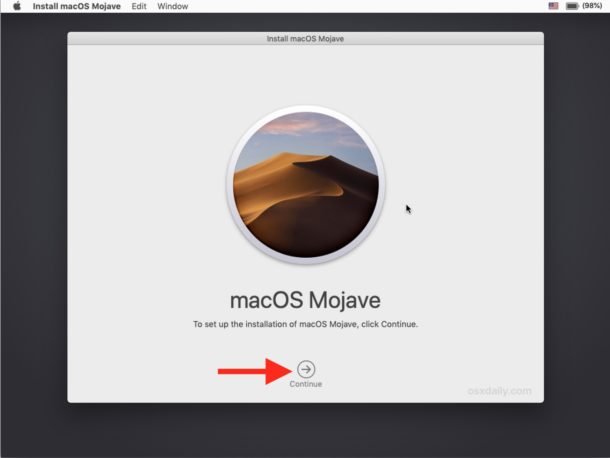
Now that the drive is empty, we need to put the brain back into the computer. Back at the main “macOS Utilities” screen, select “Reinstall macOS” (it will usually say the specific name, like “Reinstall macOS Sonoma” or “Ventura”). Click Continue.
The installer will open. It will ask you to agree to the software license terms. Click “Agree.” Then it will ask you where to install it. Since you just erased your drive, there should only be one option: “Macintosh HD.” Select it and click “Install.”
Now, you wait. The computer will download a fresh copy of the operating system from Apple’s servers. This is a large file (over 12 gigabytes), so the speed depends entirely on your internet connection. If you have slow Wi-Fi, this could take an hour or more. Plug your laptop into power so the battery doesn’t die in the middle. Once the download is finished, the Mac will restart and begin the installation. You will see the Apple logo and a progress bar. It might restart multiple times. The screen might go black for a minute. Do not panic; this is normal. The computer is unpacking thousands of files and setting up the intricate architecture of the OS. Go make a coffee, read a book, or walk the dog. Let the machine do its work.
Internet Recovery What If the Drive Is Totally Empty
Sometimes, things go wrong. Maybe you bought a new blank hard drive to replace a broken one. Maybe you accidentally erased the Recovery partition too. If your Mac cannot find a local Recovery Mode, it has a backup plan: Internet Recovery.
This is a brilliant feature. Your Mac has a tiny bit of software burned directly into the motherboard chip that knows how to connect to Wi-Fi. If it sees an empty hard drive, it will display a spinning globe icon and ask you to select a Wi-Fi network. Once you connect, it reaches out to Apple’s servers and downloads the Recovery tools directly from the internet.
It takes longer than normal recovery because it has to download everything from scratch, but it is a lifesaver. It allows you to fix a computer that seems completely dead. The steps after it loads are exactly the same: use Disk Utility to format the drive, then click Reinstall macOS. It proves that as long as your hardware works and you have Wi-Fi, a Mac is almost never truly broken software-wise.
Creating a Bootable USB Installer The Pro Method
For most people, the built-in Recovery Mode is perfect. But sometimes you might want a “Bootable USB Installer.” This is useful if you have multiple Macs to fix and don’t want to download the huge installer file every single time. It is also useful if you have really slow internet and want to download the installer at a friend’s house with fast fiber.
To do this, you need a USB stick with at least 16GB of space. You will need to use another working Mac to prepare it. Download the macOS installer from the App Store but do not run it. Instead, you have to use a tool called “Terminal.” This involves typing a command line code that tells the computer to write the installer onto the USB stick. Apple provides these codes on their support website; you can copy and paste them.
Once the USB is created, you plug it into the target Mac. On an Intel Mac, hold the “Option” key while booting to see the USB drive. On a Silicon Mac, hold the power button to see the boot menu. Select the USB drive. The installer will run directly from the stick, which is much faster than downloading it. This is a bit more technical, but it makes you feel like a real IT pro.
The Setup Assistant The New Mac Feeling
Once the installation bar hits 100%, your Mac will restart one last time. You will be greeted by the “Setup Assistant.” This is the same screen you saw when you first took the computer out of the box. It will say “Hello” in many different languages.
This is the fun part. You get to pick your country, your language, and your Wi-Fi network. It will ask if you want to enable location services and Siri. It will ask you to sign in with your Apple ID. Signing in is highly recommended because it instantly syncs your contacts, your calendar, your notes, and your iCloud photos. It brings your digital life back into the empty machine.
You will also create your user account. Pick a username and a strong password. You can set up Touch ID if your Mac supports it, training the fingerprint sensor to recognize you. You can choose your look—Light Mode (bright and airy) or Dark Mode (cool and easy on the eyes). Take your time with these screens. You are setting the preferences that will define your experience for years to come.
Restoring Your Data Migration Assistant
Finally, you are at the desktop. It is clean, empty, and beautiful. But you need your stuff back. This is where that Time Machine backup we made at the start becomes the hero.
You can drag and drop files manually if you want a fresh start, only bringing back what you really need. But the easiest way is to use “Migration Assistant.” You can find this app in the Utilities folder (or just search for it with Spotlight). Open it and connect your Time Machine drive.
Migration Assistant will ask, “How do you want to transfer your information?” Select “From a Mac, Time Machine backup, or Startup disk.” Select your backup drive. You can then choose exactly what to bring back. You can restore your “Applications” so you don’t have to download them all again. You can restore your “User Folder” which has all your documents. You can even restore your “System & Network Settings” so your Wi-Fi passwords and wallpaper come back. Click “Continue,” and the Mac will copy everything over. It might take an hour or two. When it finishes, you log out and log back in, and it will be like magic: your computer is exactly how you left it, but running on a fresh, clean, glitch-free operating system.
Conclusion Enjoying Your Revitalized Machine
Congratulations! You have successfully navigated the world of operating system installation. You have taken a computer that was slow, cluttered, or empty, and turned it into a powerful, efficient machine. It is a process that intimidates many, but as you have seen, it is just a series of logical steps.
Now, take a moment to enjoy the fruits of your labor. Open a web browser and feel how fast it loads. Scroll through a document and see how smooth the motion is. You have not only fixed your current problems, but you have also extended the life of your Mac. You have saved yourself a trip to the repair shop and the cost of a service fee. You have taken ownership of your technology.
Whether you are keeping this Mac for another five years or handing it off to a new owner, you can rest easy knowing it is in perfect condition. Installing macOS is a skill you will keep forever. The next time your computer acts up, or a friend asks for help with their slow laptop, you won’t panic. You will know exactly what to do. You have the power to hit the reset button and start fresh whenever you want. Enjoy your “new” Mac.