
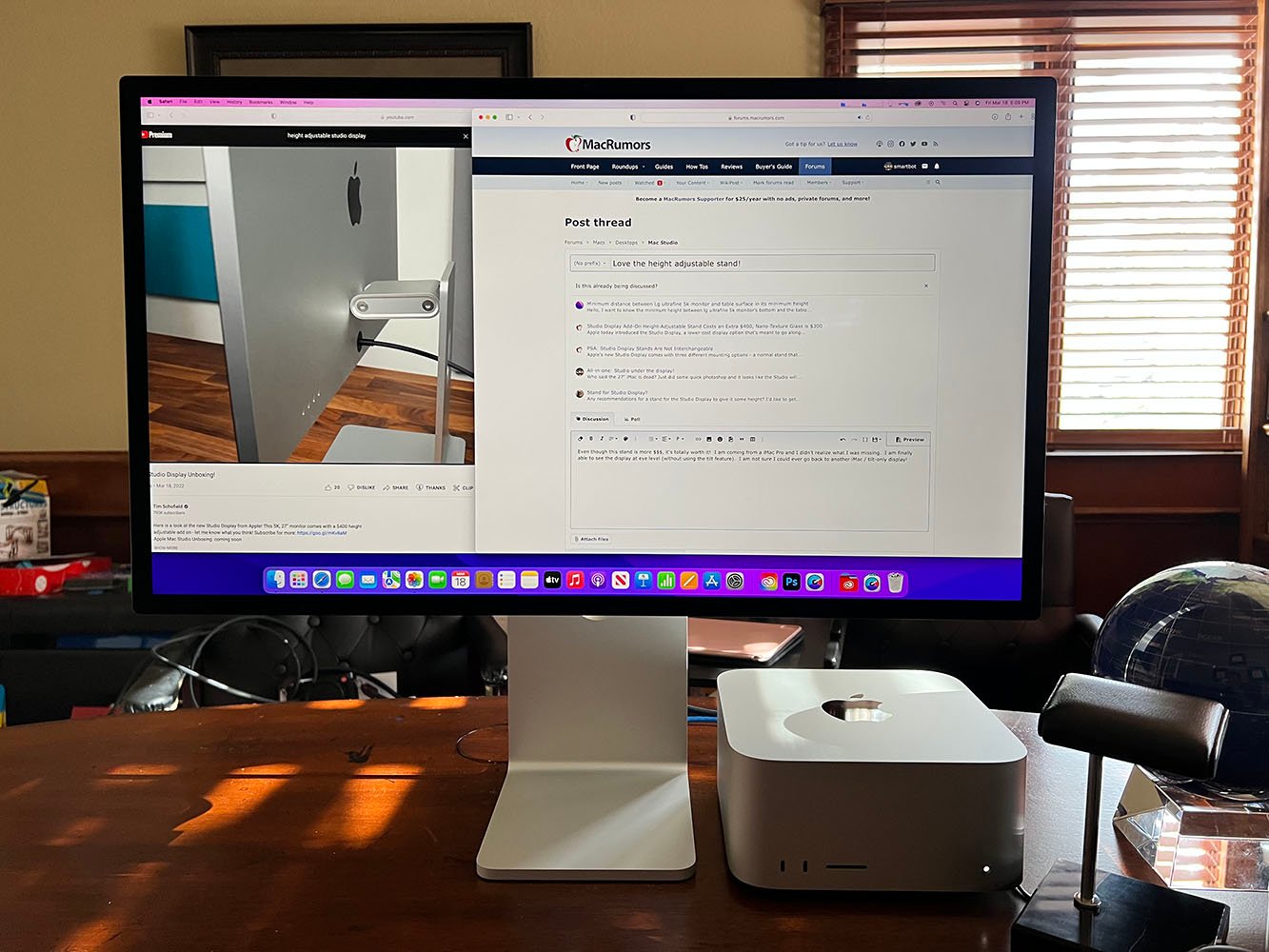
There is a special kind of magic in unboxing a new Mac. Whether it is a sleek MacBook Air, a powerful MacBook Pro, or a stunning iMac, the experience is always the same. You peel off the plastic, lift the lid, and the screen springs to life with that iconic chime. The aluminum feels cool under your hands, the screen is bright and crisp, and everything looks beautiful. But once you get past the initial setup screens and land on the desktop, you might feel a moment of hesitation. It is clean—almost too clean. It is a blank slate. If you are coming from the world of Windows, it might even feel a little alien. Where is the Start menu? Why does the mouse scroll “backwards”? How do I install things?
Setting up a Mac is more than just downloading apps. It is about tailoring the operating system to fit your life. It is about understanding the philosophy of Apple’s design—simplicity, security, and speed—and making it work for you. A well-set-up Mac can be a joy to use for years, running smoothly without the crashes and slowdowns that plague other computers. But if you clutter it with the wrong software or ignore the basic settings, you will miss out on what makes these machines so special. This guide is your roadmap. We are going to walk through the essential software setup for a new Mac, using simple, plain English. We will cover everything from the boring-but-necessary updates to the hidden gems that make your work faster. By the end of this post, your Mac won’t just be a computer; it will be your computer.
Why Updating macOS is the Critical First Step
Before you download a single app or move a single file, you have to eat your vegetables. In the world of computers, “eating your vegetables” means installing updates. I know, I know. You just bought this computer. It should be up to date, right? Not necessarily. That Mac might have been sitting in a box in a warehouse for three months. In that time, Apple engineers have been busy fixing bugs, patching security holes, and maybe even adding new features.
If you start installing software on an old version of macOS, you are asking for trouble. Apps might crash. Drivers might not work. Security features might be outdated. So, head to the Apple menu in the top left corner (the little apple logo), click “System Settings” (or System Preferences on older models), go to “General,” and click “Software Update.” Let it check. If it finds something, install it. It might take twenty minutes. It might restart your computer. Grab a coffee and let it do its thing. This is the foundation. You cannot build a house on a swamp, and you cannot build a stable software setup on an outdated operating system. Once you see that message saying “Your Mac is up to date,” you have the green light to proceed.
Taming the System Settings for a Comfortable Experience
Now that the engine is running smoothly, let’s adjust the driver’s seat. macOS comes with default settings that Apple thinks are best for everyone, but they might not be best for you. The biggest shock for new users is the Trackpad. By default, Apple uses “Natural Scrolling.” This means when you move your fingers up, the page moves down, just like on a phone screen. If you are used to a Windows laptop, this feels backwards. If it drives you crazy, go to System Settings, click “Trackpad,” click the “Scroll & Zoom” tab, and turn off “Natural scrolling.” Suddenly, the world will feel normal again.
Next, look at the Dock. That is the bar of icons at the bottom of the screen. By default, it is huge. It takes up valuable screen space. You can make it smaller, move it to the side of the screen, or—my personal favorite—set it to “Automatically hide and show.” This means the Dock disappears when you aren’t using it, giving your apps 100% of the screen. You just move your mouse to the edge, and it pops back up. Finally, explore “Hot Corners.” This is a secret superpower of the Mac. You can set it so that if you move your mouse to the top-right corner, it instantly locks the screen. Or if you move to the bottom-left, it shows the desktop. It is a tiny setting that saves you thousands of clicks over the life of the computer.
The Great Browser Debate: Safari vs. The Rest
The first app you will likely open is Safari. For a long time, tech geeks made fun of Safari. They said it was slow and didn’t have enough features. That is not true anymore. Today, Safari is blazing fast, incredibly private, and most importantly, it is energy efficient. Because Apple makes both the hardware and the software, Safari is optimized to sip battery power. If you use Google Chrome on a Mac, you might notice your laptop getting hot and the battery draining faster. Chrome is a resource hog.
However, the choice depends on your life. If you use an Android phone and a Windows PC at work, you probably want Google Chrome or Firefox so that your bookmarks and passwords sync across all your devices. Chrome has a massive library of extensions (little add-ons) that Safari can’t match. If you are a developer or a power user, you might check out newer browsers like Arc or Brave. But for the average user who just wants to browse the web, shop, and watch Netflix, give Safari a try for a week. You might be surprised by how quiet your computer stays.
Understanding How to Install Apps: The App Store and DMGs
This is the part that confuses everyone who switches from Windows. On Windows, you usually download an “.exe” file, double-click it, and a wizard walks you through the installation. On Mac, it is different. You have two main ways to get software.
First, there is the Mac App Store. This is just like the App Store on your iPhone. You search for an app, click “Get,” and it installs automatically. It is safe, easy, and updates are handled for you. Use this for big apps like Microsoft Word, Slack, or simple utilities.
Second, there is the “Web Download.” When you download an app from a website (like Zoom or Spotify), you usually get a file ending in “.dmg”. This stands for Disk Image. Think of it like a virtual USB stick. When you double-click it, a little window opens on your desktop. Inside, you will see the app icon and a shortcut to your Applications folder. To install it, you literally drag the app icon into the Applications folder. That’s it. You don’t run an installer wizard. You just drag and drop. Then, you “eject” the disk image (right-click the little drive icon on your desktop and hit eject) and delete the .dmg file. It feels weird at first, but once you get used to it, it is actually much faster than the Windows method.
Essential Productivity Tools: Pages, Office, and PDFs
Your Mac is a tool for creating things. Out of the box, it comes with Apple’s version of Office: Pages (for writing), Numbers (for spreadsheets), and Keynote (for presentations). These are free, and they are excellent. Keynote, in particular, makes much more beautiful presentations than PowerPoint. If you are working alone, these might be all you need.
However, the rest of the world runs on Microsoft. If you are a student or work in a corporate environment, you probably need Microsoft 365 (Word, Excel, PowerPoint). You can download this directly from the App Store. It runs perfectly on Mac.
For handling PDF files, you have a secret weapon built right in: Preview. On Windows, you often need to buy Adobe Acrobat to do anything useful with a PDF. On Mac, the default Preview app lets you rearrange pages, combine two PDFs into one, sign documents with your trackpad, and add text. You almost never need to pay for PDF software on a Mac. Get to know Preview; it is one of the most underrated pieces of software Apple makes.
Solving the Window Management Problem
Here is a hard truth: macOS is terrible at managing windows. On Windows, you can drag a window to the side of the screen, and it snaps to fill exactly half the screen. It is satisfying and useful. On Mac, if you drag a window to the side, nothing happens. You have to manually resize it by pulling the corners, which takes forever.
This is the one area where you absolutely need to install a third-party app. There are many options, some paid and some free. Apps like Magnet or Rectangle are lifesavers. They run quietly in the background. Once installed, they give your Mac that “snapping” power. You can drag a window to the left, and it snaps to the left half. Drag it to the corner, and it takes up a quarter. Or you can use keyboard shortcuts to throw windows around. This might seem like a small thing, but if you work with multiple windows open—like writing an email while looking at a website—it will double your speed. It fixes the one big flaw in the Mac operating system.
Media and Entertainment: Beyond QuickTime
Your Mac comes with a video player called QuickTime. It is… fine. It plays videos recorded on an iPhone perfectly. But the internet is full of weird video formats. You might have an old movie file, a clip from a security camera, or a high-definition MKV file. QuickTime will often throw up an error saying it “cannot open this file.”
To fix this forever, download VLC Media Player. VLC is a legend in the software world. It is free, open-source (no ads, no tracking), and it plays absolutely everything. It doesn’t look very pretty—its icon is an orange traffic cone—but it is a workhorse. Install it, and you will never have to worry about a “file type not supported” error again.
For music, you have Apple Music (formerly iTunes) built-in. It is great if you subscribe to Apple’s service. If you use Spotify, download the dedicated Mac app. It is much better than listening through a web browser because you can use the media keys on your keyboard (play, pause, skip) to control the music even when the app is in the background.
The Safety Net: Setting Up Backups with Time Machine
Computers break. Hard drives fail. People spill coffee. It is a fact of life. If you do not have a backup, you will eventually lose your photos, your documents, and your work. The tragedy is that macOS makes backing up incredibly easy, yet people still don’t do it.
Apple includes a feature called Time Machine. It is arguably the best backup software ever made for consumers. All you need is an external hard drive. You plug it in, and the Mac will ask, “Do you want to use this disk to back up with Time Machine?” You click “Use as Backup Disk.” That is it. You are done.
Time Machine works quietly in the background. It takes a snapshot of your computer every hour. If you accidentally delete a file, you can “go back in time” and grab it. If your Mac gets stolen, you can buy a new one, plug in your backup drive, and restore everything exactly as it was. It copies your wallpaper, your passwords, your open tabs—everything. Do not ignore this. Go buy a cheap external drive today and set it up. It is the cheapest insurance policy you will ever buy.
Mastering Spotlight: The Search Bar That Does Everything
On many computers, the search bar is slow and useless. On Mac, the search tool is called Spotlight, and it is a genius. You open it by holding the Command key and pressing Spacebar. A little bar pops up in the middle of the screen.
You can use Spotlight to find apps and files, of course. But it does so much more. It is a calculator: type “56 * 45” and it shows the answer. It is a currency converter: type “50 USD in Euros” and it tells you the rate. It defines words. It finds contacts. It can even search the text inside your documents.
Stop clicking through folders to find things. Stop opening the calculator app for simple math. Just hit Command+Space and type. Once you build the muscle memory for Spotlight, you will feel like a wizard. It is the fastest way to navigate your computer.
Keeping It Clean: Uninstalling and Maintenance
Finally, let’s talk about keeping your Mac fresh. Over time, you will install apps you don’t need anymore. On Windows, you have to go to a special “Add/Remove Programs” menu. On Mac, you usually just drag the app from the Applications folder to the Trash.
However, simply dragging an app to the trash sometimes leaves little “leftover” files—settings, caches, and logs—hidden deep in your system. Over years, these can clutter up your storage. To do a “clean” uninstall, you might want a small utility app like AppCleaner. These are usually free. You drag the app you want to delete into the AppCleaner window, and it finds all the hidden files associated with it and deletes them too.
Also, be careful with “Mac Cleaning” software you see advertised on the internet. Many of these “Make Your Mac Fast” apps are actually scams or malware. Your Mac does a very good job of maintaining itself. You don’t need to defragment the drive or run registry cleaners. Just keep your software updated, restart it once in a while, and be careful what you download.
Conclusion: Enjoying Your New Digital Home
Setting up a Mac is a journey. It starts with a generic machine and ends with a personalized powerhouse. It might feel like a lot of steps—updates, settings, new apps, backups—but each step serves a purpose. You are building a system that works for you.
By taking the time to do this properly, you are saving yourself hours of frustration in the future. You won’t be fighting with windows that won’t snap. You won’t be panicking when a file gets lost. You won’t be squinting at a tiny Dock. Instead, you will have a computer that feels invisible. It will just get out of your way and let you work, create, and play. That is the promise of the Mac. It is not just about the hardware; it is about the experience. So, close this guide, open your new Mac, and start making it your own. Welcome to the family.