
For a long time, there has been a myth that Linux is only for computer geniuses. People think you need to be a hacker in a dark room, typing green code onto a black screen just to check your email. This could not be further from the truth. In 2026, Linux is just as easy to use as Windows or macOS. In fact, in many ways, it is easier. It is free, it is fast, and it respects your privacy. If you have an old laptop that feels slow, or if you are just tired of your computer forcing you to update when you are busy, Linux is the answer.
Installing a new operating system sounds scary. It feels like performing brain surgery on your computer. You worry that you might break something or lose all your files. But the process is actually very logical. It follows a simple set of steps: download, prepare, install, and enjoy. You do not need a degree in computer science. You just need a USB stick and a little bit of patience. This guide is going to walk you through the entire process of installing Linux. We will use simple, plain English to explain every term, so you can feel confident and in control of your technology. By the end of this guide, you will have a computer that feels brand new, without spending a single penny.
Why Choosing Linux Is the Best Decision for Your Computer
Before we jump into the installation, let’s talk about why you are doing this. Why would you leave the comfort of Windows or Mac? The biggest reason is control. When you buy a computer with Windows, you are essentially renting the software. Microsoft decides when to update it. They decide what features you get. They decide what data they collect about you. With Linux, you own the system. There are no forced updates. There is no spying. You are the captain of the ship.
Another huge benefit is performance. Modern operating systems are heavy. They require a lot of memory and processing power just to run the background tasks. Linux is incredibly lightweight. It strips away the bloatware. This means it can run smoothly on hardware that is ten years old. If you have a sluggish laptop sitting in a drawer, Linux can bring it back to life. It will run faster, cooler, and quieter. Finally, there is the cost. Linux is completely free. You can download it, install it on as many computers as you want, and share it with your friends legally. You save hundreds of dollars on licenses, and you get access to thousands of free apps that do everything from writing documents to editing video.
Picking Your Flavor Understanding Linux Distributions
The first thing that confuses new users is the choice. Windows comes in one version: Windows. Linux comes in hundreds of versions, called “Distributions” or “Distros.” This is because Linux is open-source. Anyone can take the core code and modify it to look and act the way they want. Some distros are built for servers, some for hackers, and some for everyday people like you and me.
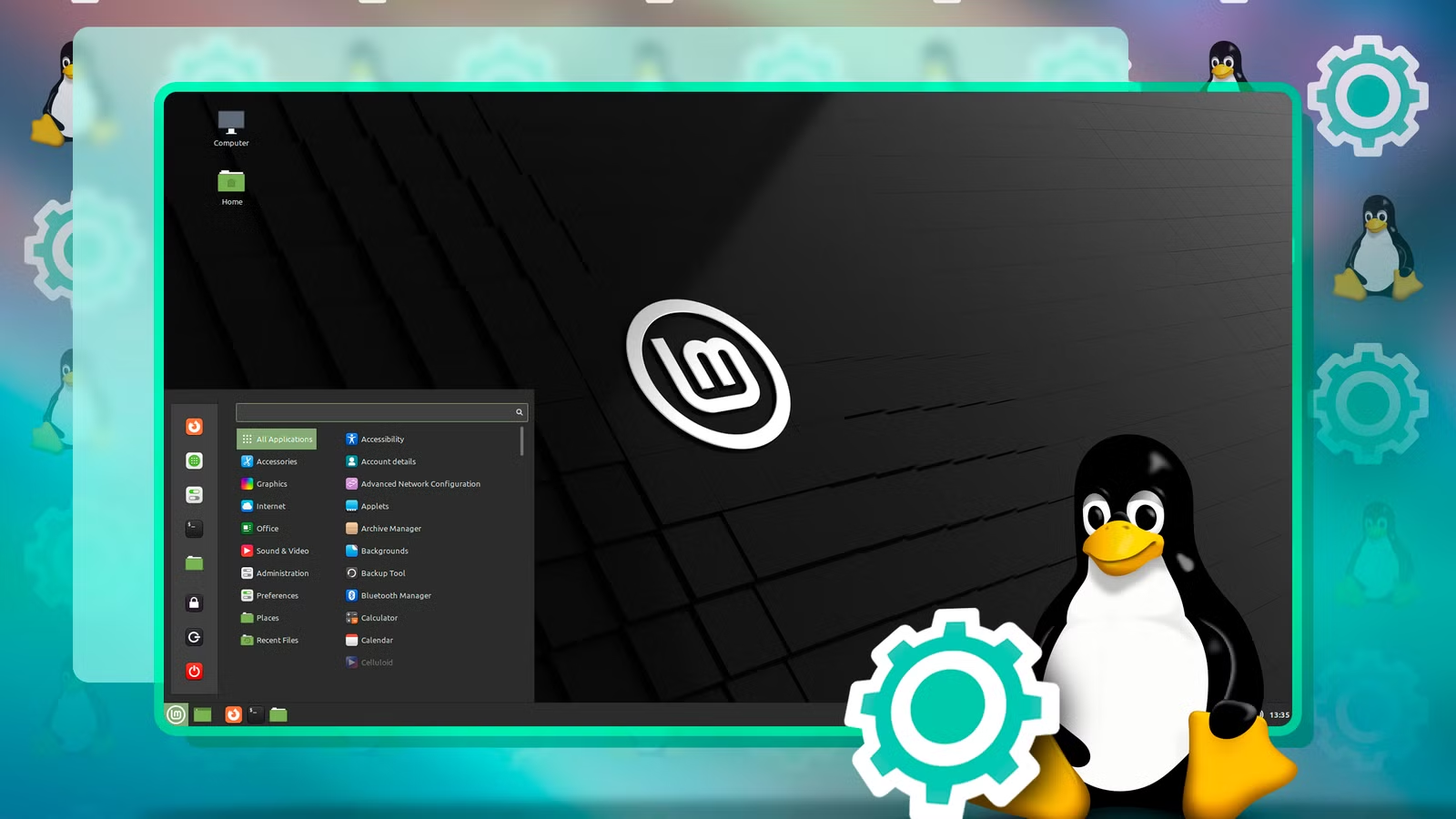
For a beginner, the choice is actually very simple. You want a distro that “just works.” You want something that looks familiar. The two best options are Linux Mint and Ubuntu. Linux Mint is fantastic if you are coming from Windows. It has a taskbar at the bottom, a “Start” menu in the corner, and windows that snap to the sides. It feels like home immediately. Ubuntu is the most popular version in the world. It looks a bit more like a Mac or a phone interface, with a dock of icons on the side. Both of these are stable, safe, and have huge communities of people ready to help if you get stuck. For this guide, we will focus on the general process, which applies to almost any beginner-friendly distro you choose.
Preparing Your Tools What You Need Before You Start
You cannot build a house without a hammer, and you cannot install an OS without the right tools. Thankfully, the list is short. First, you need a computer. It can be the one you are using right now, or an old one you want to fix up. It needs to have an internet connection.
Second, you need a USB flash drive. This is going to be your installation key. It needs to be at least 4GB or 8GB in size. It should be empty because we are going to erase everything on it. If you have old photos or documents on that stick, move them somewhere safe right now.
Third, you need to download two files. You need the “ISO file” of the Linux distro you chose. Go to the Linux Mint or Ubuntu website and click the big “Download” button. An ISO file is basically a digital copy of a DVD. It contains the entire operating system in one package. You also need a small program to put that ISO onto the USB stick. The best tool for this is called “BalenaEtcher” (or just Etcher). It is free, works on Windows and Mac, and is impossible to mess up. Download and install Etcher, and you are ready to go.
The Golden Rule Back Up Your Data Immediately
I cannot stress this enough. Before you do anything else, you must back up your data. We are about to make major changes to your computer’s hard drive. Even though the process is safe, accidents happen. You might accidentally click “Erase Disk” instead of “Install Alongside.” If that happens, your wedding photos, your tax returns, and your novel are gone forever.
Take an external hard drive (not the USB stick we are using for the installation) and plug it in. Copy your “Documents,” “Pictures,” “Desktop,” and “Downloads” folders onto it. If you don’t have an external drive, use a cloud service like Google Drive or Dropbox. Upload your most critical files.
Also, think about your browser data. If you use Chrome or Firefox, make sure you are signed in so your bookmarks and passwords are saved to the cloud. Once you wipe the computer, your saved passwords will disappear from the local machine. Take ten minutes to double-check everything. Peace of mind is worth the effort. Once you are 100% sure your files are safe, unplug the backup drive and put it in a drawer. Now you can proceed without fear.
Creating Your Bootable USB Stick
Now we perform the magic trick. We need to turn that empty USB stick into a “Bootable Drive.” This means that when you plug it into a computer, the computer can wake up and run the operating system directly from the stick, instead of the hard drive.
Open the Etcher program you downloaded. It has a very simple interface with three big buttons. Button 1: “Select Image.” Click this and find the Linux ISO file you downloaded earlier (e.g., linuxmint-21.iso). Button 2: “Select Drive.” Plug in your USB stick. Etcher usually finds it automatically, but make sure it is the right one. You don’t want to accidentally wipe your external backup drive. Button 3: “Flash!” Click this button.
Etcher will now warn you that the drive is about to be erased. Click “Yes.” It will take a few minutes to write the files. You will see a progress bar. Once it finishes, it will verify the data to make sure there are no errors. When it says “Flash Complete,” you can close the program. You now have a powerful Linux installation tool in your pocket. This stick can be used to install Linux on your computer, your friend’s computer, or a hundred computers.
Entering the BIOS The Digital Gatekeeper
This is the part that intimidates most people, but it is actually very straightforward. When you turn on your computer, it normally looks at the internal hard drive for Windows. We need to tell it to look at our USB stick instead. To do this, we have to interrupt the startup process and enter a menu called the BIOS or Boot Menu.
Shut down your computer completely. Plug in your Linux USB stick. Now, turn the computer on. As soon as you press the power button, start tapping a specific key on your keyboard repeatedly. This key depends on who made your computer. For Dell, it is usually F12. For HP, it is usually F9 or Escape. For Lenovo, it is F12 or Enter. For Asus and Acer, it is usually F2 or Delete.
If you don’t know the key, watch the screen closely when it first turns on. Text will often flash at the bottom saying “Press F12 for Boot Options.” If you miss it and Windows starts loading, just shut down and try again. Once you hit the right key, you will see a simple menu listing your drives. Use the arrow keys to select your USB drive (it might be called “UEFI: SanDisk” or something similar) and press Enter.
The Live Environment Try Before You Buy
One of the coolest things about Linux is the “Live Environment.” When you boot from the USB stick, you are not immediately forced to install it. Instead, the computer will load a fully functional version of Linux running directly off the USB stick. It won’t touch your hard drive yet.
You will see a desktop appear. You can move the mouse, open the web browser, connect to Wi-Fi, and explore. This is your test drive. Check everything. Does the sound work? Does the Wi-Fi connect? Is the screen brightness adjustable? If everything works here, it will work after you install it.
Take some time to look around. Open the file manager. Open the start menu. See if you like the look and feel. If you don’t like it, you can just shut down the computer, pull out the USB stick, and turn it back on. Windows will be right there, untouched. It is a risk-free way to experiment. But if you do love it—and you probably will—you will see an icon on the desktop that says “Install Linux Mint” (or whatever distro you chose). Double-click that icon to start the real installation.
The Installation Process Step by Step
The installer program is designed to be friendly. It looks just like installing a regular app. It will ask you a series of questions. First, choose your language. Then, connect to Wi-Fi if you haven’t already. This allows the installer to download updates while it works. Next, it might ask if you want to install “third-party software for graphics and Wi-Fi hardware.” Check this box. It includes the drivers needed to play MP3 files and watch videos. It saves you time later.
Then comes the big decision: “Installation Type.” You usually have two choices. Option 1: “Erase disk and install Linux.” This is the cleanest option. It deletes Windows entirely and gives the whole hard drive to Linux. If you backed up your data, choose this. It makes the computer faster and simpler. Option 2: “Install Linux alongside Windows Boot Manager.” This is called “Dual Booting.” It shrinks your Windows partition and creates a space for Linux. Every time you turn on the computer, a menu will ask if you want Windows or Linux. This is good if you have one specific Windows program you absolutely need for work, but it is more complicated to set up and can lead to errors later.
For a fresh start, choose “Erase disk.” Click “Install Now.” It will show a warning: “Write changes to disk?” Click “Continue.” While it installs, it will ask for your location (for the time zone) and ask you to create a user account. Pick a username and a password. Make sure you remember this password! In Linux, you need this password to install any software or make system changes. It is a security feature.
Post Installation Drivers and Updates
The installation will take about 15 to 30 minutes. When it finishes, a message will pop up saying “Installation Complete.” Click “Restart Now.” The screen will go black, and it will tell you to remove the installation medium. Pull out the USB stick and press Enter.
Your computer will reboot, and within seconds, you will see your new login screen. Type in your password. Welcome to your new computer! The very first thing you should do is update the system. In Linux Mint, an “Update Manager” shield icon appears in the corner. Click it. In Ubuntu, a “Software Updater” window pops up. Linux updates are different from Windows. They are fast, and they update everything at once—the OS, the browser, and your apps—in one go.
You might also see a “Driver Manager” notification. Open it. It will check if your computer needs any special proprietary drivers, usually for NVIDIA graphics cards or specific Wi-Fi chips. If it recommends a driver, click “Apply Changes.” This ensures you get the best performance for gaming and video playback.
Customizing Your New Digital Home
Now the fun begins. You can make Linux look however you want. Unlike Windows, where you are stuck with the default look, Linux is infinitely customizable. Open the “Themes” settings. You can change the color of the folders, the style of the window borders, and the mouse cursor. You can make it look like a futuristic hacker terminal or a sleek modern studio.
Go to the “Software Manager” (or App Store). This is the best part of Linux. You don’t have to go to random websites to download programs. You just open the store, search for what you want, and click “Install.” Everything is free and virus-free. Need a browser? Install Chromium or Firefox. Need an office suite? LibreOffice is likely already installed, but you can get OpenOffice too. Need Photoshop? Try GIMP. It is a powerful free alternative. Need to edit video? Kdenlive is fantastic. Need to play games? Install Steam. Yes, Steam works on Linux, and thanks to a tool called Proton, thousands of Windows games run perfectly on Linux now.
Spend the afternoon exploring. Set up your email client (Thunderbird is great). log into your cloud storage. Arrange your desktop icons. You will quickly realize that everything you did on Windows, you can do here, but it feels snappier. There is no antivirus slowing you down in the background. There are no pop-ups asking you to subscribe to Office 365. It is just you and your computer working in harmony.
Conclusion Welcome to the Community
Congratulations. You have successfully installed a Linux operating system. You have taken an old or slow computer and turned it into a secure, fast, and productive machine. You have saved money, protected your privacy, and learned a valuable technical skill.
The most important thing to remember is that you are not alone. The Linux community is huge and incredibly friendly. If you ever get stuck, just search for your problem online. There are forums, Reddit communities, and chat rooms filled with people who love to help beginners. Don’t be afraid to ask questions. Every expert was once a beginner staring at a USB stick wondering what to do.
You have broken free from the walled gardens of the big tech corporations. You now own your hardware and your software. Enjoy the speed, enjoy the freedom, and enjoy the feeling of using a computer that truly belongs to you. Welcome to the world of Linux.