
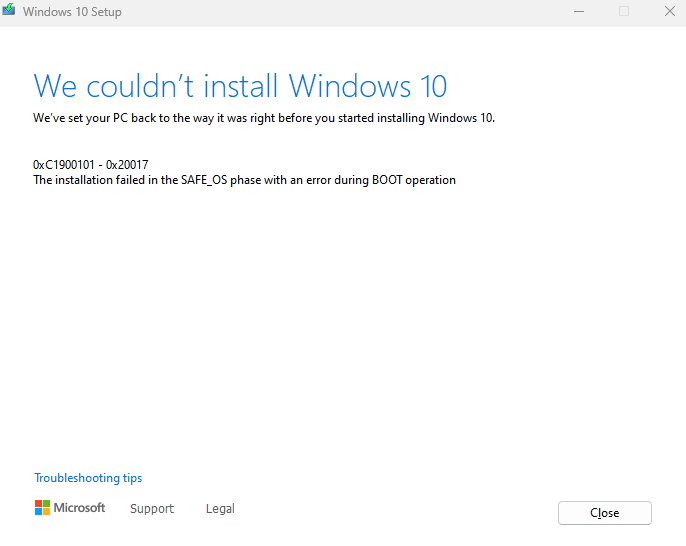
There are few things in the world of technology that are as nerve-wracking as installing a new operating system. Whether you are building a brand new gaming PC, trying to revive an old laptop with Linux, or doing a fresh install of Windows to clean out viruses, the stakes feel incredibly high. You press the power button, you see the loading circle, and you hold your breath. For a moment, everything looks good. And then, it happens. A scary red box pops up. Or the screen just goes black. Or worse, the computer starts making a beeping noise you have never heard before. Your heart sinks. You start to worry that you have broken your computer forever or lost all your precious family photos.
The truth is, operating system installation errors are incredibly common. Computers are complex machines made of thousands of different parts from different companies, and sometimes they just don’t want to talk to each other. But here is the secret that IT professionals know: most of these errors look terrifying, but they are actually very easy to fix. They usually happen because of a simple setting in the wrong place or a tiny file that is missing. You do not need to be a computer genius to solve them. You just need patience, a clear head, and a guide to walk you through the logic. This post is that guide. We are going to look at the most common roadblocks people face when installing an OS and show you exactly how to clear them, using simple English that anyone can understand.
Why Your USB Stick Might Be the Root of All Evil
When you decide to install an operating system today, you rarely use a DVD. You almost always use a USB flash drive. This little stick is the bridge between the software and your computer. If the bridge is broken, nothing gets across. A huge percentage of installation errors happen before the installation even starts, simply because the USB drive was not created correctly.
You might see errors like “Media Driver Missing” or “Setup cannot continue.” This often means the file on the USB stick is corrupted. When you download a massive file like Windows or Linux, it travels through miles of internet cables. Sometimes a tiny piece of data gets lost along the way. If your installer fails right at the beginning, the first step is always to remake the USB stick. Do not just try to run it again. Go back to a working computer, download the tool again (like the Windows Media Creation Tool or Rufus), and let it write to the USB stick from scratch.
Also, try a different USB port. This sounds too simple to be true, but it works. Computers have different types of USB ports. The blue ones are USB 3.0 (super fast), and the black ones are USB 2.0 (older and slower). Sometimes, the installation software doesn’t have the drivers to read the super-fast blue ports until after the OS is installed. If you are getting weird errors, try plugging your stick into a black USB 2.0 port. It might be slower, but it is much more compatible and stable for the initial setup.
Solving the BIOS and Boot Menu Mystery
The most intimidating part of the whole process is the BIOS. This is the dark, text-based menu that lives inside your computer motherboard. To install an OS, you have to tell the motherboard, “Hey, don’t look at the hard drive yet. Look at this USB stick instead.” If you don’t do this, the computer will just turn on normally (or fail to turn on) and ignore your installation stick completely.
The problem is that every computer manufacturer uses a different “secret handshake” to get into this menu. You have to turn the computer on and immediately start tapping a specific key on your keyboard like a drummer. For Dell, it is usually F12. For HP, it is often Escape or F9. For ASUS, it might be Delete. If you don’t know the key, your screen will usually flash a hint for a split second that says “Press F2 for Setup.”
If you get into the menu but the computer still refuses to see your USB stick, you might have a conflict with “Secure Boot.” Secure Boot is a security feature designed to stop viruses from loading when you turn on your PC. However, it can also stop legitimate installers, especially if you are trying to install Linux or an older version of Windows. If your stick is not showing up in the “Boot Order” list, try finding the “Security” tab in your BIOS and temporarily turning off Secure Boot. Just remember to turn it back on after you are finished installing.
The Drive Not Found Error and Missing Storage Drivers
Imagine getting through the setup, clicking “Install Now,” and reaching the screen where you choose where to save your files. But the list is empty. It says “No drives were found.” This is a panic-inducing moment. You know you have a hard drive inside the computer. You can hear it spinning, or you paid a lot of money for that fast SSD. Why can’t Windows see it?
This is usually not a broken hard drive. It is a language barrier. Your modern hard drive speaks a very new, fast language (often called NVMe or RAID), and the basic Windows installer speaks an older language. It needs a translator. This translator is called a “Storage Driver” (often Intel RST).
To fix this, you need to go to the website of your computer manufacturer (like Lenovo or Dell). Search for your specific laptop model and look for “Storage Drivers” or “SATA Drivers.” Download the file. It will usually be a zipped folder. You need to unzip it and put those files onto your installation USB stick. Now, plug the stick back into the broken computer. On that empty “No drives found” screen, there is a small button that says “Load Driver.” Click it, browse to the folder you just added to the stick, and select the driver. Suddenly, like magic, your hard drive will appear on the list, and you can proceed.
GPT versus MBR Understanding Partition Style Errors
You click on your hard drive to install Windows, and you get a cryptic error message: “Windows cannot be installed to this disk. The selected disk is of the GPT partition style.” Or maybe it says it is “MBR style.” This sounds like technical gibberish, but it is actually a simple formatting issue.
Think of your hard drive like a library. MBR (Master Boot Record) is the old-school card catalog system from the 1990s. It works, but it has limits. GPT (GUID Partition Table) is the modern digital database system. It is faster and handles huge libraries better. Modern computers with “UEFI” mode want the modern GPT system. Older computers with “Legacy BIOS” mode want the old MBR system. The error happens when you try to use the old card catalog in a modern digital library.
The fix is to wipe the drive and let Windows format it correctly. Warning: This deletes all your data, so make sure you have a backup! On the installation screen where you see the drives, delete every single partition shown (Drive 0 Partition 1, Partition 2, etc.) until you have just one entry called “Drive 0 Unallocated Space.” Select that empty space and click “Next.” Windows will automatically figure out if it needs GPT or MBR and set it up for you. You don’t need to choose; you just need to clear the way so Windows can build the library from scratch.
The Windows 11 TPM and Secure Boot Roadblock
If you are trying to install Windows 11, you might hit a very specific brick wall. The installer might tell you, “This PC can’t run Windows 11.” This is confusing, especially if you have a relatively new and powerful computer. The culprit is almost always a security chip called TPM 2.0 (Trusted Platform Module).
Microsoft made a controversial decision to require this chip for Windows 11. It helps protect your encryption keys and passwords. Most computers made after 2018 have this chip, but it is often turned off by default in the factory. The computer has the hardware, but the switch is flipped to “Off.”
To fix this, you have to go back into that scary BIOS menu we talked about earlier. Look for a tab called “Security,” “Trusted Computing,” or “PCH-FW Configuration.” You are looking for a setting called “TPM,” “fTPM” (for AMD processors), or “PTT” (for Intel processors). Change it from “Disabled” to “Enabled.” Save and exit. When you try to install Windows 11 again, it will see the security chip is active and let you through the gate. If your computer is truly too old to have this chip, there are workarounds, but they are complicated and not recommended for the average user because you might stop getting security updates.
When the Installation Freezes or Stalls at Getting Ready
Patience is a virtue, but waiting five hours for a progress bar to move from 99% to 100% tests anyone’s sanity. Sometimes, the installation just freezes. The dots stop spinning, or it stays on “Getting files ready” forever.
This often happens because the computer is confused by other things plugged into it. During installation, Windows is trying to figure out what hardware you have. If you have a printer, a webcam, a USB microphone, and a second monitor all plugged in, the installer might get stuck trying to find drivers for them.
The solution is the “Unplug Everything” method. Shut down the computer. Unplug everything except the power cord, the monitor, the mouse, and the keyboard. Even unplug your internet cable (Ethernet) if you can. Restart the installation. With fewer distractions, the installer can focus on the basics—the processor and the hard drive. Once Windows is fully installed and you are on the desktop, you can plug your gadgets back in one by one. Windows is much better at identifying them when it is fully awake than when it is halfway through being born.
Blue Screens and Random Reboots During Setup
Seeing a “Blue Screen of Death” (BSOD) with a sad face 🙁 right in the middle of an installation is heartbreaking. It usually means something physical is wrong with your computer. Software can usually fix itself, but if the hardware is failing, the software crashes.
The most common suspect during an installation crash is RAM (Random Access Memory). RAM is the short-term memory of your computer. If even a tiny part of your RAM stick is broken, the installation files will get corrupted as they pass through it, causing a crash. If you have a desktop PC with two sticks of RAM, try taking one out. Try installing with just Stick A. If it crashes, swap them and try with just Stick B. If it works with one but not the other, you have found the bad part.
Another cause is overheating. Installing an OS pushes your processor to work hard. If your fans are clogged with dust or not spinning, the CPU might get too hot and shut down to protect itself. If your computer shuts off abruptly with a “click” sound, check your fans. Use a can of compressed air to blow out the dust before trying again.
The Infinite Boot Loop Nightmare
This is a classic comedy of errors. You put the USB stick in, you install Windows, the computer restarts to finish the setup… and then it takes you right back to the very first “Install Now” screen. You think, “Maybe it didn’t work?” so you do it again. It restarts. You are back at the start again. You are trapped in a loop.
This is not a broken computer. This is just the computer doing exactly what you told it to do. Remember when we changed the “Boot Order” in the BIOS to prioritize the USB stick? Well, the computer is still obeying that order. Every time it restarts, it sees the USB stick and thinks, “Oh, the boss wants me to run the installer again!”
The fix is all about timing. Watch the installation progress bar. When it hits 100% and says “Windows needs to restart to continue,” get ready. The screen will go black. In that exact moment, pull the USB stick out of the computer. When it turns back on, it won’t find the USB stick, so it will look for the next thing on the list—your hard drive, which now has the new Windows files on it. The installation will continue normally. You don’t need the stick anymore once the files are copied.
Fixing Network Issues After the Install
Congratulations! You have reached the desktop. The Start menu works. But wait… you can’t get online. The Wi-Fi icon is missing, or plugging in the internet cable does nothing. This is the catch-22 of fresh installs: you need the internet to download drivers to fix the internet.
Windows usually comes with generic drivers that work for most Wi-Fi cards, but not all. If you have a brand new or very specialized Wi-Fi card, Windows might not know how to talk to it yet.
To fix this, you need a second device—another computer or even your smartphone. Go to the support website for your computer model and download the “Network Driver” or “Wi-Fi Driver.” If you use your phone, connect it to your computer with a USB cable and set it to “File Transfer” mode. Move the driver file onto your new desktop and run it. Once the Wi-Fi driver is installed, you can connect to the internet. From there, you can run Windows Update, which will automatically find and fix the rest of your missing drivers (like sound and graphics).
Conclusion You Are the Master of Your Machine
Troubleshooting an operating system installation can feel like solving a puzzle where the pieces keep changing shape. It is frustrating, and it is perfectly normal to feel like giving up and calling a pro. But if you have read this far, you have the tools to solve 99% of the problems you will face.
Remember the golden rules: simple is better. Unplug extra devices. Remake your USB stick if it acts weird. Be patient with the progress bars. Most errors are not catastrophic failures; they are just safety gates stopping you from proceeding until the conditions are right. By understanding what the computer is asking for—whether it’s a driver, a partition format, or a BIOS setting—you can simply open the gate and walk through.
There is a massive sense of accomplishment in successfully reviving a computer. You have saved money, you have learned valuable skills, and you have demystified the magic box on your desk. So take a deep breath, double-check your backup, and press that power button. You’ve got this.