
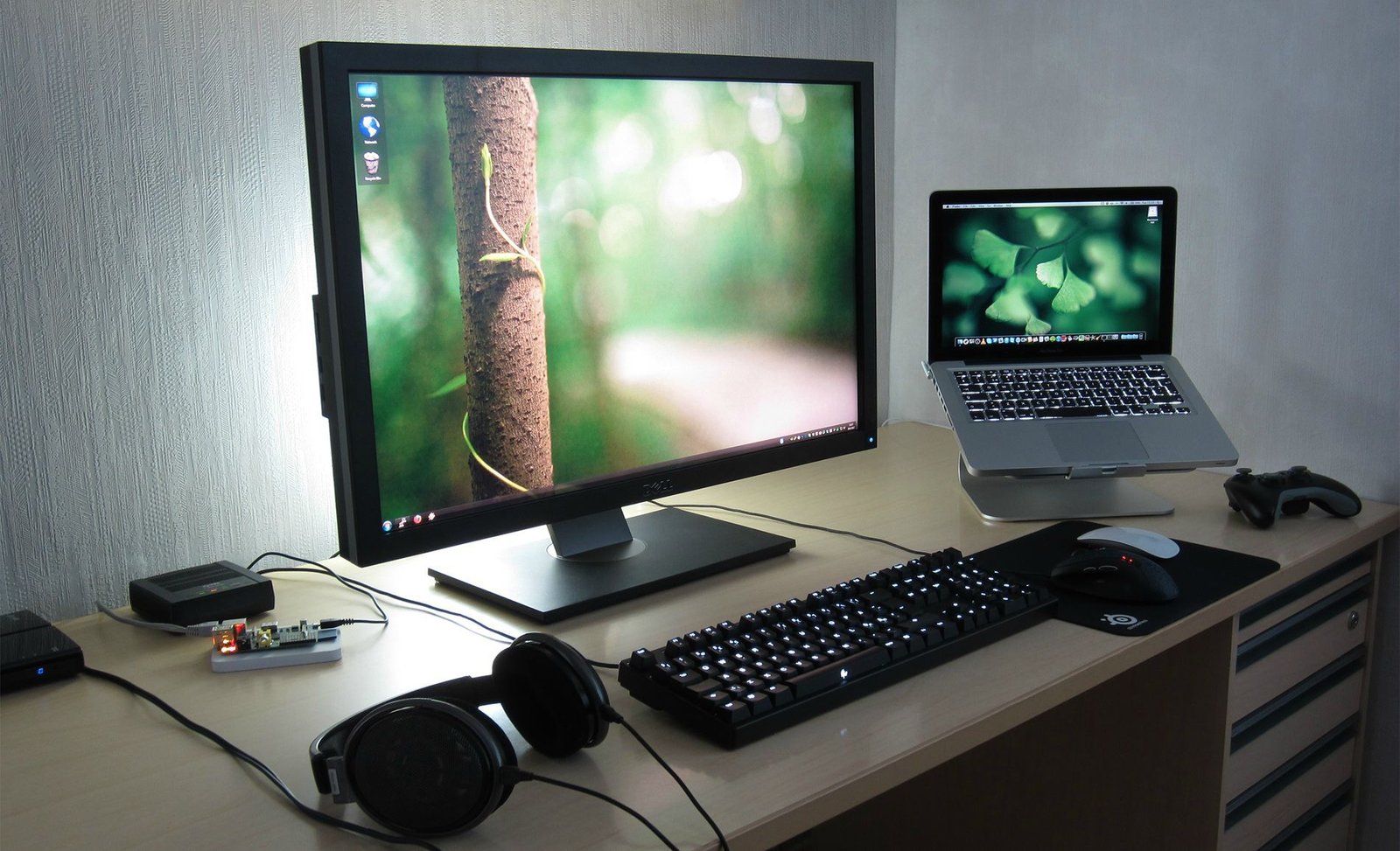
There is a special kind of excitement that comes with buying a new computer. It doesn’t matter if it is a sleek new laptop for school, a powerful desktop for gaming, or just a reliable machine for your home office. The feeling is always the same. You see the clean box, you peel off the plastic wrap, and you smell that distinct “new electronics” scent. It represents potential. It is a blank slate where you will write documents, play games, edit photos, or connect with friends. But the moment you press the power button, that excitement often turns into a little bit of anxiety. You are greeted by setup screens, questions about privacy, and requests to sign up for accounts you have never heard of.
For many people, setting up a new computer feels like a chore. They worry about doing it wrong. They worry about clicking “Yes” on something that will slow down their computer or compromise their privacy. They worry about transferring their old photos safely. But the truth is, setting up a computer is not rocket science. It is a logical, step-by-step process. If you follow the right order, you can turn that factory-fresh machine into a powerful, personalized, and secure tool in just an afternoon. This guide is here to help you do exactly that. We will walk through the entire setup process, from the moment you open the box to the moment you browse the web, using simple, plain English that anyone can understand.
Unboxing and Initial Inspection Starting Off on the Right Foot
The setup process actually begins before you even turn the computer on. It starts with the unboxing. When you open the box, resist the urge to just rip everything out. Take a moment to look at the packaging. Check the box for any dents or holes. If the box is damaged, there is a chance the computer inside is damaged too. Once you pull the laptop or tower out, look at it closely. Check the screen for cracks. Check the corners for dents. If you see anything wrong, put it back in the box immediately and return it. It is much easier to exchange a broken computer right now than it is to fix it later.
Also, look for the accessories. You will usually find a power cable (or a “brick” charger for laptops) and some paperwork. Do not throw the box away yet. I know it takes up space, but you should keep the box and the receipt for at least thirty days. If the computer has a defect that only shows up after a week of use, having the original box makes the return process much smoother.
If you have a new laptop, the very first thing you should do is plug it into the wall. Laptops are often shipped with the battery in a “shipping mode” or with a low charge. If you try to turn it on without plugging it in, it might not respond, or it might die halfway through the setup process. This can cause software errors. So, find a comfortable spot near an outlet, plug it in, and let it get some juice before you press that power button.
Powering Up and The First Boot Navigating the Setup Wizard
Now comes the moment of truth. You press the power button. The screen lights up, you see the manufacturer’s logo, and you wait. The first time a computer turns on, it takes longer than usual. It is waking up and getting its internal systems ready. Eventually, you will hear a voice (like Cortana on Windows) or see a welcome screen asking for your language and region.
This part of the process is called the “Out of Box Experience.” It is designed to be friendly. Just answer the questions honestly. Select your country. Select your keyboard layout. It will then ask you to connect to a Wi-Fi network. Select your home network and type in the password.
Next, you will be asked to sign in. On Windows, they want you to use a Microsoft Account (like Outlook or Hotmail). On a Mac, they want an Apple ID. It is highly recommended to do this. Signing in with an account links your computer to the cloud. This means if you forget your password later, you can reset it easily using your email. It also helps sync your settings. If you have an old computer with the same account, your wallpaper and browser favorites might magically appear on the new one, saving you hours of work. You will also be asked about privacy settings. Read these carefully. You generally want to turn off “Advertising ID” and “Location” unless you specifically need map apps, as this stops companies from tracking you for ads.
Connecting to the Internet and Handling Critical Updates
Once you reach the desktop, the computer looks ready to go. The wallpaper is there, the icons are there. You might be tempted to immediately download your favorite game or open Netflix. Please, stop. You have one very boring but very important task to do first. You must update the computer.
Your computer was probably built in a factory three or six months ago. Since then, the engineers who built the software have found bugs, security holes, and performance issues. They have released updates to fix them. If you start using your computer now, you are using “old” software. You might be vulnerable to viruses, or your screen might flicker because the video driver is outdated.
On Windows, go to the Start menu, type “Check for updates,” and click the button. On a Mac, go to System Settings and look for “Software Update.” Click “Check now.” It will likely find a big list of updates. Click “Install all.” This will take time. Your computer might restart two or three times. It might sit on a black screen for a while. Let it do its work. Go make a sandwich. By doing this now, you ensure that your computer is fast, safe, and stable before you start putting your personal life on it. It is the single most important step in the whole process.
Security First Setting Up Antivirus and Passwords
Now that your system is updated, we need to lock the doors. Security is vital. In the old days, the first thing everyone did was buy a big yellow box of antivirus software from the store. Today, things are different. Modern operating systems come with excellent security built right in. Windows has “Windows Security” (formerly Defender), and Mac has “XProtect.”
For ninety-nine percent of home users, the built-in security is enough. It runs quietly in the background, it updates itself, and it doesn’t slow your computer down. You do not need to pay for expensive third-party antivirus software unless you are downloading very risky files. Just check the security center in your settings to make sure all the lights are green.
However, you do need to secure your passwords. You probably have accounts for email, banking, social media, and shopping. Do not use the same password for all of them. If a hacker steals your password from one site, they have the key to your entire life. Instead, set up a “Password Manager” or use the one built into your web browser. This tool remembers your passwords for you. You only have to remember one strong master password, and the computer handles the rest. Also, set up “Biometrics” if your computer has it. This means using your fingerprint or your face to unlock the computer. It is faster than typing a password and much more secure because nobody can guess your fingerprint.
Debloating Your System Removing Junk Software You Don’t Need
When you buy a computer, especially a Windows laptop, it often comes with “Bloatware.” This is software that you didn’t ask for. The manufacturer (like HP, Dell, or Lenovo) gets paid by other companies to pre-install their apps on your machine. You might see a trial version of an antivirus you don’t want, a random card game, or a music app you have never heard of.
This software takes up space on your hard drive. Worse, it often runs in the background, using up your processor power and battery life even if you never open it. You need to clean house.
Go to your “Settings” and find the “Apps” or “Installed Apps” section. Scroll through the list slowly. If you see something you know you will never use—like “WildTangent Games” or a trial for McAfee when you plan to use Windows Defender—click on it and select “Uninstall.” Be careful not to uninstall anything that looks like a driver (usually labeled “Intel,” “AMD,” or “NVIDIA”). If you aren’t sure what an app is, Google the name. If the internet says it is bloatware, get rid of it. Your computer will feel lighter and snappier immediately.
Installing Essential Apps Browsers Office and Media
Now that the junk is gone, it is time to bring in the furniture. You need the tools to actually do your work. The first thing most people install is a web browser. Your computer comes with Edge (Windows) or Safari (Mac). These are fine, but if you prefer Google Chrome or Firefox because they sync with your phone, go download them now. Sign in to the browser, and watch your bookmarks and history magically appear.
Next, think about productivity. You probably need to write documents or make spreadsheets. If you own Microsoft Office (Word, Excel), log in to your Microsoft account and download it. If you don’t want to pay, you can use free alternatives like LibreOffice or just use Google Docs in your web browser. You will also need a way to read PDF files. Modern browsers can do this, but a dedicated PDF reader is often helpful for forms.
Finally, think about media. The built-in video players are okay, but they sometimes struggle with weird video file formats. I highly recommend downloading “VLC Media Player.” It is a free, open-source app that can play absolutely any video or audio file you throw at it. It is the “Swiss Army Knife” of media players. Also, install your music apps like Spotify or iTunes so you can have some tunes while you finish the setup.
Personalizing Your Experience Wallpapers Display and Sound
This is the fun part. You want the computer to feel like yours. Start with the desktop. Right-click on the background and select “Personalize.” Change the wallpaper to a photo of your family, your pet, or a landscape you love. Seeing an image that makes you happy every time you turn on the screen changes your relationship with the machine.
Next, look at the display settings. If you have bad eyesight, you can make the text larger so you don’t have to squint. Look for a setting called “Scale” and adjust it until it looks comfortable. You should also turn on “Night Light” or “Night Shift.” This feature turns the screen slightly orange in the evening. It filters out blue light, which can help you sleep better if you use the computer late at night.
Don’t forget the mouse and sound. If the mouse moves too slowly across the screen, go into settings and turn up the “Cursor Speed.” If you are left-handed, you can switch the mouse buttons. Check your sound settings to make sure the volume is good and that the computer is using the right speakers. These small tweaks might seem minor, but they make the computer feel comfortable and tailored to you.
Setting Up Backups Protecting Your Data from Disaster
Computers break. Hard drives fail. People spill coffee on keyboards. It is a sad fact of life. If your photos and documents are only stored on your computer, you are one accident away from losing them forever. You must have a backup plan.
The easiest way to do this today is Cloud Storage. Services like OneDrive (built into Windows), iCloud (built into Mac), Google Drive, or Dropbox are lifesavers. During setup, you can tell these services to automatically “watch” your Desktop, Documents, and Pictures folders. This means that as soon as you save a file, it is instantly copied to a secure server on the internet. If your laptop gets stolen tomorrow, you can buy a new one, log in, and all your files will reappear.
If you have very large files, like video projects, or if you don’t trust the cloud, buy an external hard drive. Plug it in and set up “File History” (Windows) or “Time Machine” (Mac). This will automatically copy your files to the drive whenever it is plugged in. The best strategy is the “3-2-1 Rule”: Keep 3 copies of your data, on 2 different types of media (like your laptop and an external drive), with 1 copy offsite (in the cloud).
Creating User Accounts and Parental Controls
If you are the only person using the computer, you can skip this. But if you share the computer with your spouse or kids, you should create separate User Accounts. Sharing one account is a recipe for disaster. Your bookmarks get mixed up, someone accidentally deletes your file, or your kid installs a game that fills up the hard drive.
Go to Settings and look for “Accounts.” Create a new “Standard User” for each person. A standard user can use the computer, browse the web, and save their own files, but they cannot install new software or change system settings without your permission. This keeps the computer safe.
If you have children, this is also where you set up Parental Controls. You can set time limits (e.g., “only 2 hours of screen time per day”), block adult websites, and prevent them from buying apps with your credit card. Both Windows and Mac have excellent family safety tools built in for free. Taking ten minutes to set this up now can save you a lot of arguments and tech support headaches later.
Conclusion Enjoying Your Optimized and Secure Computer
Congratulations! You have successfully navigated the maze of computer setup. You started with a generic machine in a box, and now you have a personalized, secure, and high-performance tool. You have removed the junk that slows it down. You have installed the tools that make you productive. You have secured your data against hackers and accidents.
Now, take a deep breath and enjoy it. Open your browser and notice how fast pages load. Open a document and see how crisp the text looks. Listen to some music. You have done the hard work, and now you get to reap the rewards. Remember that a computer is like a car; it needs a little maintenance now and then. Check for updates once a month, and keep an eye on your storage space. But for now, your machine is in perfect shape. Whether you are using it to write the next great novel, conquer a video game, or just video chat with your grandma, you can do it with confidence knowing that your setup is rock solid. Welcome to your new digital home.