
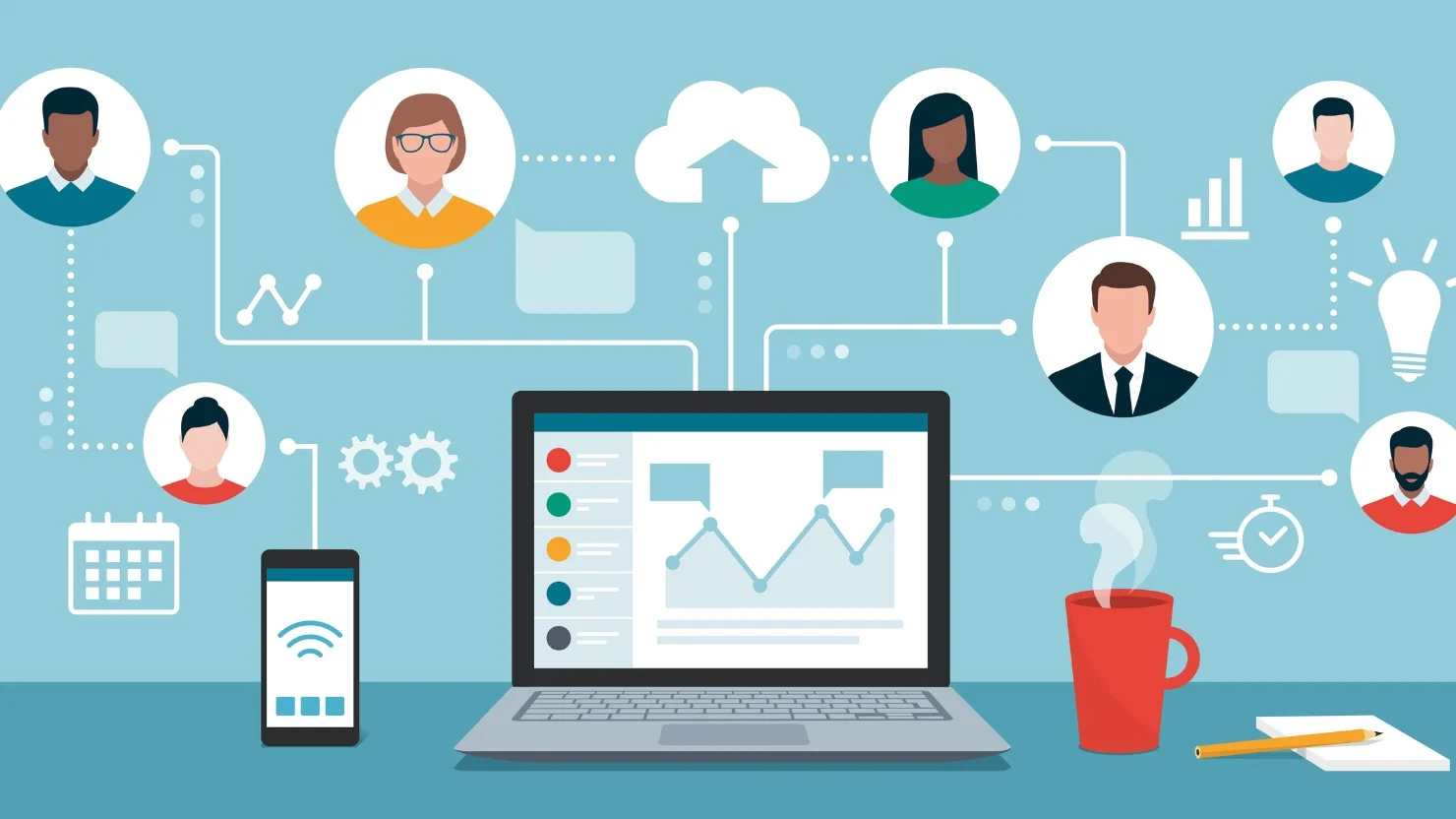
We live in a golden age of software. There is an app for absolutely everything. If you need to talk to your team, there is Slack. If you need to manage a project, there is Trello. If you need to write a document, there is Google Docs. We download these tools with high hopes, thinking that just having the icon on our screen will magically make us organized and efficient. But more often than not, the opposite happens. We end up with a phone buzzing every thirty seconds, an email inbox with five thousand unread messages, and a calendar that looks like a game of Tetris gone wrong. The problem isn’t the apps themselves; the problem is how we set them up.
Most people install a business app, log in, and start using it immediately without changing a single setting. This is a mistake. Default settings are designed by software companies to keep you engaged, not to make you productive. They want you to look at their app as much as possible, which means they turn on every notification and feature by default. To truly be productive, you have to take control. You have to configure your digital tools to serve you, rather than letting them interrupt you. This guide is going to walk you through the essential setup steps for the most common business and productivity apps. We will use simple, plain English to explain exactly what to change and why, helping you build a digital workspace that actually helps you get work done.
The Foundation: Why Customizing Your Settings Is Critical for Focus
Before we dive into specific apps, we need to understand the philosophy of a good setup. Productivity is not about doing more things faster; it is about doing the right things with focus. When you install a new tool, your first job is to protect your attention.
The default state of almost every modern app is “noisy.” They want to send you push notifications, emails, and badges for every little activity. If you don’t change this, your day becomes a series of interruptions. It takes the human brain about twenty minutes to get back into a state of deep focus after an interruption. If your phone buzzes every ten minutes, you are never truly focused.
Therefore, the first step in any app setup is “Notification Hygiene.” You need to go into the settings immediately and turn off almost everything. You should only receive a notification if a human being is trying to contact you directly about something urgent. Everything else—newsletters, project updates, daily summaries—should be turned off so you can check them on your own schedule. This simple mindset shift transforms your devices from distraction machines into silent, helpful assistants.
Mastering Your Calendar Setup for Ultimate Time Management
Your calendar is the map of your life. If it is messy or confusing, your day will be too. Setting up a digital calendar like Google Calendar or Outlook requires more than just adding meetings. You need to configure the environment to reflect how you actually work.
First, set your “Working Hours.” deep in the settings menu of most calendar apps, there is an option to define when you start and end your day. If you work from 9 AM to 5 PM, tell the calendar that. This prevents colleagues from booking meetings with you at 6 PM or during your lunch break. It sets a boundary automatically so you don’t have to have awkward conversations about rescheduling.
Next, set up “Default Meeting Durations.” By default, most calendars set new meetings to one hour. But does every meeting need to be an hour? Probably not. You can change this setting to 25 minutes or 50 minutes. This creates a “speedy meeting” culture. It gives you a built-in buffer of five or ten minutes between calls to stretch your legs, get water, or just breathe. It stops the exhaustion of back-to-back video calls.
Finally, use color coding. Don’t just leave every event as the default blue. Create categories. Make deep work sessions green, meetings red, and personal errands yellow. This allows you to look at your week at a glance and see if your balance is right. If you see a sea of red and no green, you know immediately that you need to block out some time for actual work.
Taming the Email Beast with Proper Configuration
Email is the grandfather of business communication, and it is also the biggest source of stress for many professionals. The goal of email setup is to spend as little time in your inbox as possible. Whether you use Gmail, Outlook, or Apple Mail, the configuration steps are similar.
Start with the “Inbox Layout.” Most apps default to a single long list of messages. This is overwhelming because a newsletter from a clothing store looks just as important as an email from your boss. Change your view to “Priority Inbox” or “Focused Inbox.” This splits your mail into two tabs: “Important” and “Other.” The app learns over time which people you reply to and puts them in the Important tab, while hiding receipts and newsletters in the Other tab. This alone cuts down the noise by half.
Next, set up “Swipe Actions” on your phone. When you swipe an email to the left or right, it should do something useful. Configure swipe right to “Archive” (which removes it from the inbox but keeps it searchable) and swipe left to “Snooze.” Snoozing is a superpower. If you get an email at 6 PM that you can’t deal with until tomorrow morning, snooze it until 9 AM. It disappears and comes back as a fresh email when you are ready to work.
Finally, turn off email notifications on your phone. Yes, really. Unless you are an emergency responder, you do not need to know the second an email arrives. Check your email manually three or four times a day. Constant buzzing creates a Pavlovian response where you feel anxious if you aren’t checking your phone. Break that cycle by disabling the alerts.
Setting Up Project Management Tools to Actually Manage Projects
Tools like Trello, Asana, and Monday.com are fantastic for keeping teams organized, but they can quickly become cluttered graveyards of old tasks if not set up correctly. The key here is structure and view.
When you create a new board or project, don’t just start adding tasks. Think about the workflow. The classic setup is “Kanban,” which consists of columns like “To Do,” “Doing,” and “Done.” This is simple and effective. However, you should add a “Waiting On” column. This is for tasks where you have done your part but are waiting for a reply or approval from someone else. This keeps your “Doing” column clean and focused on what you can actually control.
Configure your “Tags” or “Labels” immediately. Create a standardized system for your team. Use red for “High Priority,” blue for “Low Priority,” and maybe yellow for “Requires Review.” If everyone uses their own system, the board becomes unreadable. Agreeing on a color code upfront saves hours of confusion later.
Also, check the “Email Notification” settings in these apps. By default, they send you an email every time someone moves a card or adds a comment. This will flood your inbox. Go into your profile settings and turn off email notifications for everything except being “mentioned” directly. You want to check the project management tool when you are working, not have it cluttering up your email.
The Art of Note-Taking App Organization
A good note-taking app like Evernote, Notion, or OneNote acts as your second brain. It holds your ideas, meeting notes, and research. But a second brain is useless if you can’t find anything inside it. The setup here is all about hierarchy.
Before you write your first note, decide on a structure. You generally have two choices: Notebooks or Tags. “Notebooks” act like physical folders. You might have one for “Marketing,” one for “HR,” and one for “Personal.” This is easy to understand but can get rigid. “Tags” are more flexible. You can tag a note as both “Marketing” and “Q4 Project.”
Most productivity experts recommend a hybrid approach. Create broad Notebooks for big areas of your life (e.g., Work, Home, Side Project) and use Tags for specifics (e.g., #meeting, #ideas, #receipts). Set this up before you have 500 notes.
Another critical setting is “Offline Access.” If you travel for work or have spotty internet, make sure your note app is configured to download your notes to your device. There is nothing worse than getting to a client meeting and realizing you can’t open your prep notes because the office Wi-Fi is down. Go to settings and check “Keep offline” for your most important notebooks.
Cloud Storage and File Management for Seamless Collaboration
We don’t save files to our desktops anymore; we save them to the cloud. Google Drive, OneDrive, and Dropbox allow us to access our files from anywhere. But setting them up requires a bit of thought about synchronization.
Install the desktop app for your cloud storage. This creates a folder on your computer that syncs with the cloud. However, you don’t want to sync everything. If your company has 10 terabytes of data, you can’t fit that on your laptop. Go into the app’s “Preferences” and look for “Selective Sync” or “Smart Sync.” This allows you to see all the files without actually downloading them. They only download when you double-click to open them. This saves huge amounts of space on your hard drive.
You should also configure your “Sharing Permissions” defaults. In a business setting, you want to make sure you aren’t accidentally sharing sensitive documents with the whole world. Set your default link sharing to “Restricted” or “Organization Only.” This adds a layer of safety. If you need to share a file with a client, you can manually change that specific file to “Anyone with the link,” but the default should always be secure.
Communication Tools That Don’t Distract You
Team chat apps like Slack and Microsoft Teams have revolutionized how we work, but they can also be incredibly distracting. They function like an open office where anyone can tap you on the shoulder at any time. To make these tools productive, you have to set boundaries in the software.
First, configure your “Sidebar.” These apps usually list every single channel and person you have ever talked to. It’s a mess. Create sections. Make a section called “Priority” for your direct team and your boss. Make a section called “Muted” for social channels or company-wide announcements. You can collapse the Muted section so you don’t even see the unread badges. This clears visual clutter and lowers your anxiety.
Next, set up a “Do Not Disturb” schedule. You can tell the app to automatically mute notifications between 6 PM and 9 AM. You can also pause notifications for 1 hour or 2 hours when you need to do deep work. Do not be afraid to use this. Your status will show a little “Zzz” or a snoozing icon, telling your colleagues that you are not available right now. This is not rude; it is professional. It shows you are managing your time effectively.
Password Managers The Security Key to Productivity
You cannot be productive if you are constantly clicking “Forgot Password” and waiting for reset emails. A Password Manager like 1Password, LastPass, or Bitwarden is essential business software. The setup involves creating one extremely strong “Master Password” and then letting the app handle the rest.
Install the “Browser Extension” for your password manager immediately. This is what allows the app to autofill your login details when you visit a website. You should never have to type a password manually. Go into the extension settings and ensure it is set to “Autofill” or “Ask to save new passwords.”
Also, set up the mobile app and enable “Face ID” or “Fingerprint” unlock. This makes logging into apps on your phone instantaneous. The friction of logging in is a huge time waster. By removing that friction, you make it easier to jump into your work tools and get started.
Automation Making Your Apps Talk to Each Other
The final level of app setup is automation. This is where you make your apps talk to each other so you don’t have to copy and paste data manually. You don’t need to be a coder to do this.
Tools like Zapier or built-in automations in Apple Shortcuts can do wonders. For example, you can set up a simple automation that says: “When I get an email with an attachment, save that attachment to my Dropbox folder.” Or “When I create a task in Asana, create a matching event in my Google Calendar.”
Look for the “Integrations” or “Apps” section in your tools settings. If you use Slack and Google Drive, connect them. This allows you to preview documents right inside the chat window without having to open a new tab. If you use Zoom and Outlook, connect them so that every meeting invite automatically generates a Zoom link. These small connections save you seconds every time, but over a year, they save you days of administrative work.
Conclusion Building a System That Works for You
Setting up your business and productivity apps is not a one-time event; it is a process of refinement. You might try a setting for a week and realize it doesn’t work for you. That is okay. The goal is to be intentional.
When you install a new app, don’t just accept the defaults. Ask yourself: “How does this tool fit into my workflow? When do I want it to notify me? What information do I need to see first?” By taking control of the configuration, you transform these pieces of software from nagging taskmasters into powerful allies.
A well-set-up digital workspace is quiet, organized, and ready for action. It doesn’t beep at you when you are trying to sleep. It doesn’t hide important files in messy folders. It presents you with the information you need, right when you need it. So take an hour this week to go through your most-used apps. Turn off the notifications, organize the folders, and set the schedules. Your future self will thank you for the peace of mind and the boost in productivity. You have the tools; now make them work for you.