
We have all been there. You get a new Android phone, you peel off the plastic, you turn it on, and the screen is beautiful and bright. But a phone without apps is just a shiny brick. It is the apps that make it useful. They are the tools we use to talk to our friends, watch movies, manage our bank accounts, and order dinner. For many people, installing an app is as simple as tapping a button. But sometimes, it gets complicated. Maybe the app you want isn’t in the Play Store. Maybe you are trying to install an old version of a game that was removed. Or maybe you are just stuck with a “Pending” message that won’t go away.
The world of Android is open and flexible, which is why so many people love it. Unlike iPhones, where you are mostly locked into one store, Android lets you do what you want. You can install apps from the official store, or you can go out onto the internet and find them yourself. This freedom is powerful, but it can also be a little confusing and even risky if you don’t know what you are doing. This guide is here to help you navigate that world. We are going to walk through everything you need to know about getting apps onto your phone, fixing problems when they happen, and keeping your device safe while you do it. We will use simple, plain English to explain the tech terms so you can feel confident exploring everything your phone has to offer.
The Google Play Store Your Safe Haven for Apps
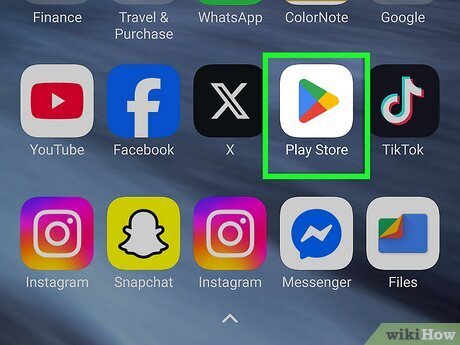
For 99% of Android users, the journey begins and ends with the Google Play Store. This is the official marketplace pre-installed on almost every Android device. Think of it like a giant, well-lit supermarket. It is organized, it is safe, and there are security guards (Google’s algorithms) checking the products to make sure they aren’t dangerous. When you open the Play Store app, you are entering a curated experience designed to make installation as easy as possible.
To install an app here, you simply type the name in the search bar—say, “WhatsApp” or “Spotify”—and tap the one you want. You will see a green button that says “Install.” When you tap that, a lot of things happen in the background. Your phone talks to Google’s servers, requests the file, downloads it to a temporary folder, and then installs it into your system storage. It creates an icon on your home screen and registers the app with the operating system. You don’t have to do anything but wait.
The Play Store also handles payments safely. If you are buying a premium game or a subscription, your credit card info is handled by Google, not the app developer. This adds a huge layer of safety. You aren’t giving your credit card number to a random company; you are giving it to Google. If you are new to Android, or if you are worried about viruses, you should stick to the Play Store. It is the gold standard for a reason. It is reliable, it updates your apps automatically, and it scans them for malware before you even download them.
Dealing with Pending Downloads and Stuck Progress Bars
Nothing is more frustrating than tapping “Install” and seeing the word “Pending…” spinning forever. You wait five minutes, ten minutes, and the little circle just keeps spinning. Or maybe it starts downloading but gets stuck at 99%. This is one of the most common issues on Android, but it is usually easy to fix.
This problem often happens because the Play Store gets confused. It might be trying to update five other apps in the background while you are trying to download a new one. It creates a traffic jam. The first thing to do is check your “Manage Apps & Device” section in the Play Store menu. See if there are updates running. If there are, you can cancel them or just wait for them to finish.
If there are no other downloads, the Play Store app itself might be glitchy. You need to clear its brain. Go to your phone’s main “Settings” app. Scroll down to “Apps” (or “Applications”). Find “Google Play Store” in the list. Tap on it, and look for “Storage & Cache.” You will see a button that says “Clear Cache.” Tap that. This deletes the temporary files the store uses to run. It does not delete your apps or your account. It just wipes the slate clean. Restart your phone and try the download again. Nine times out of ten, this unblocks the pipe and gets your app downloading immediately.
What are APK Files Understanding the Android Package Kit
If you venture outside the Play Store, you will start seeing a file extension called “.APK.” This stands for Android Package Kit. If you are a Windows user, this is exactly like an “.EXE” file. If you are a Mac user, it is like a “.DMG” file. An APK is a box. Inside that box are all the images, sounds, code, and instructions the app needs to run on your phone.
When you download an app from the Play Store, you are technically downloading an APK file, but the phone handles it invisibly. You never see the file itself. But on Android, you have the freedom to download these files directly from websites. This is called “Sideloading.” Why would you do this? Maybe an app is not available in your country. Maybe the developer released a new version on their website before it hit the store. Or maybe you want an older version of an app because the new update is ugly or broken.
Understanding that an app is just a file is the key to mastering Android. It means you can share apps with friends offline. You can Bluetooth an APK file to someone, and they can install it without needing the internet. It gives you ownership over your software. However, because an APK is just a box, you have to be careful about who gave you the box. We will talk about safety later, but for now, just know that an APK is the raw material of every Android app.
How to Enable Unknown Sources Safely
By default, your Android phone is set up to trust only one source: the Google Play Store. It treats every other source as a stranger. If you try to download an APK from a website using the Chrome browser and tap on it to install, your phone will yell at you. It will show a scary pop-up saying, “For your security, your phone is not allowed to install unknown apps from this source.”
Do not panic. This is a safety gate, not a dead end. To install the APK, you have to tell your phone that you trust the browser you are using. You will usually see a button on that pop-up that says “Settings.” Tap it. It will take you to a special menu called “Install unknown apps.” You will see a toggle switch next to the app you are using (like Chrome or your File Manager). Flip that switch to “On” (or “Allow from this source”).
Once you flip that switch, you are giving Chrome permission to act like an app store. You can now go back and tap the APK file again, and this time, you will see an “Install” button instead of a warning. It is important to remember that you should only do this if you know what you are downloading. Once you install the app, it is a good idea to go back into settings and turn that switch off again. This ensures that a malicious website can’t secretly download and install something in the background without you knowing.
Sideloading Apps A Step by Step Guide to Manual Installation
Let’s walk through the actual process of sideloading an app manually. Let’s say you want to install a game that isn’t on the Play Store, like Fortnite (which for a long time wasn’t there).
First, you need to find the APK. Open your web browser and search for the app. You want to look for reputable websites. Sites like APKMirror or APKPure are generally considered safe because they verify the files. Avoid sketchy sites that have a million “Download” buttons that flash at you. Find the correct version of the app and tap “Download.” Your browser might warn you: “This type of file can harm your device.” This is a standard warning for all APKs. If you trust the site, tap “OK.”
Once the download finishes, open your notification shade (swipe down from the top of the screen) and tap on the “Download Complete” notification. If you dismissed it, you can open your “Files” or “My Files” app and go to the “Downloads” folder. Tap the APK file. The installer window will pop up. It will show you the name of the app and ask, “Do you want to install this application?” Tap “Install.” A progress bar will slide across. When it is done, it will say “App Installed,” and you will see two buttons: “Done” and “Open.” Tap Open to launch it immediately, or Done to close the window. The app icon will now appear in your app drawer just like any other app.
The Risks of Sideloading Staying Safe from Viruses
With great power comes great responsibility. Sideloading gives you access to everything, but it also removes the safety net. The Google Play Store scans apps for malware, viruses, and spyware. When you download an APK from a random website, you are the one who has to check it.
Malicious APKs can look exactly like real ones. A hacker might take the WhatsApp APK, inject a virus into it that steals your passwords, and then upload it to a sketchy website calling it “WhatsApp Gold” or “WhatsApp Plus.” If you install it, it will look like WhatsApp and work like WhatsApp, but in the background, it is sending your data to a thief.
To stay safe, follow three rules. First, stick to big-name repository sites like APKMirror. These sites verify the digital signature of the files to make sure they haven’t been tampered with. Second, read the comments. If other users are saying the app crashes or acts weird, don’t install it. Third, use an antivirus on your phone if you plan to sideload often. Apps like Malwarebytes can scan the APK file before you install it to see if it hides any nasty surprises. If an app asks for weird permissions—like a calculator app asking for access to your contacts—uninstall it immediately. Trust your gut. If a paid game is available for free on a website, it is likely pirated and often infected.
Managing App Permissions Protecting Your Privacy
Installing the app is only the first step. The moment you open a new app, it starts asking for things. “Allow Maps to access your location?” “Allow Instagram to access your photos?” “Allow Facebook to access your microphone?” These are called Permissions.
In the old days of Android, you had to say yes to everything just to install the app. Now, you have control. You can say “Only this time” or “While using the app.” This is a massive win for privacy. You should pay close attention to these pop-ups. Does a flashlight app really need access to your location? No. Does a wallpaper app need access to your phone calls? Absolutely not. If an app asks for a permission that doesn’t make sense for what the app does, say “Don’t Allow.”
If you deny a permission and the app really needs it, it will ask you again later. It is better to start strict and loosen up later than to give away your privacy instantly. You can also go into your phone’s settings, find the “Privacy” menu, and look at the “Permission Manager.” This shows you a list of body parts—Microphone, Camera, Location. If you tap on “Microphone,” you can see every single app that has access to it. If you see a game you haven’t played in months on that list, you can revoke its access right there. Keep your digital house clean.
Updating Your Apps Why Fresh Code Matters
Software is never finished. Developers are constantly working to fix bugs, add new features, and patch security holes. An outdated app is a vulnerable app. If you use the Google Play Store, updating is easy. By default, your phone will try to update your apps automatically when you are connected to Wi-Fi and charging (usually while you sleep).
However, sometimes you want an update now. Maybe a new feature just dropped for your favorite social media app. You can force an update by opening the Play Store, tapping your profile picture, and going to “Manage apps & device.” You will see a button that says “Update All” or “See details.” Tapping “Update All” will queue everything up.
If you sideloaded an app using an APK, it will not update automatically via the Play Store. This is the biggest downside of manual installation. To update a sideloaded app, you have to go back to the website where you found it, download the new APK version, and install it again. The new version will install right on top of the old one, keeping your data safe, but you have to do the legwork. Some third-party app stores (like F-Droid or the Amazon Appstore) have their own updaters, which bridges this gap. Keeping your apps updated ensures they run smoothly and keep your data secure.
Uninstalling and Deleting Apps You Don’t Need
Over time, our phones fill up. We download a game to play on a flight, or a food delivery app for a specific city we visited, and then we forget about them. These “zombie apps” sit in your storage, taking up space and sometimes running in the background, eating your battery.
Uninstalling is just as important as installing. To remove an app, you usually just need to find the icon on your home screen or app drawer, long-press on it (hold your finger down), and look for a little “i” icon or a trash can labeled “Uninstall.” Tap it, and confirm.
However, sometimes that isn’t enough. Some apps leave leftover files behind—folders full of cached images or old data. If you really want to deep clean, you can use a file manager app like “Files by Google.” It has a “Clean” tab that finds unused apps and junk files. It will say, “You haven’t used these 10 apps in 3 months. Do you want to delete them?” This is a great way to reclaim space for new photos and videos. Remember, deleting the app from your screen doesn’t delete your account with that service. If you want to delete your Facebook account, you have to do that inside the app settings before you uninstall the app itself.
Conclusion Taking Control of Your Android Experience
Android is about choice. It is about treating your phone like a computer, not just a locked box. Whether you stick to the safety of the Google Play Store or venture out into the wild world of APKs and sideloading, knowing how installation works puts you in the driver’s seat.
You now know how to fix a stuck download. You know how to bypass the “unknown sources” warning safely. You know that an APK is just a package, and you know how to check permissions to keep your private life private. This knowledge turns you from a passive user into a power user. You don’t have to call your tech-savvy nephew every time you want a new game. You can troubleshoot your own problems.
So go ahead and explore. Download that niche app that helps with your hobby. Try that beta version of a browser. Install the tools that make your life easier. As long as you stay aware of the sources and keep an eye on your permissions, your Android device can be anything you want it to be. The technology is there to serve you, and now you have the manual.