
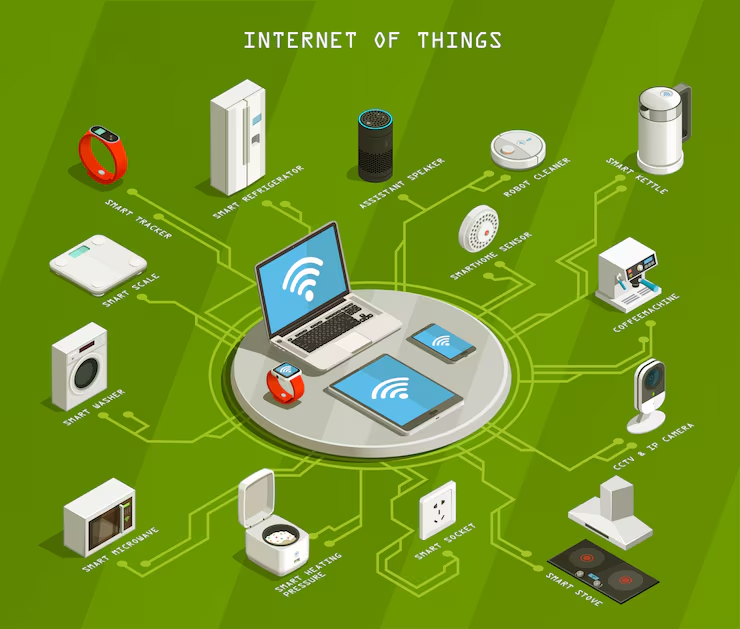
Have you ever walked into a room with your hands full of groceries and wished the lights would just turn on by themselves? Or maybe you are already in bed, warm and cozy, and you realize you forgot to lock the front door or turn off the thermostat downstairs. Ten years ago, these were problems you just had to deal with. Today, they are problems of the past. We are living in the age of the “Smart Home.” This is a world where your light bulbs talk to your phone, your doorbell has a camera, and your speaker can order pizza. It sounds like science fiction, but it is actually very affordable and accessible reality.
This technology is often called the “Internet of Things,” or IoT. It sounds complicated, but it is actually a very simple concept. It just means taking ordinary things—like a toaster, a watch, or a light switch—and putting a tiny computer chip inside them so they can connect to the internet. Once they are connected, you can control them from anywhere in the world. However, getting started can feel overwhelming. You walk into an electronics store and see rows of colorful boxes with confusing names. You worry about hacking, about complex wiring, or about spending money on gadgets that won’t work together. This guide is here to erase that fear. We are going to walk through the entire process of setting up a smart home, from buying your first bulb to automating your entire day. We will use simple, plain English to help you build a home that takes care of you.
What Exactly Is a Smart Home and Why Should You Care
Before we start plugging things in, let’s talk about why you would want to do this. A smart home is not just about showing off to your friends with cool gadgets. It is about three main things: Convenience, Energy Efficiency, and Security.
Convenience is the most obvious one. Being able to turn off every light in the house with a single voice command when you leave for work saves you time. Being able to preheat your oven while you are driving home from the supermarket makes dinner faster. Energy efficiency is where the smart home pays for itself. A smart thermostat knows when you are not home and lowers the heat so you aren’t paying to warm up an empty house. Smart plugs can turn off power-hungry devices like gaming consoles when they aren’t being used.
Then there is security. A smart home allows you to keep an eye on your property no matter where you are. You can get an alert on your phone if a window is opened while you are on vacation. You can see who is at the front door before you open it. It gives you peace of mind. But perhaps the best reason is simply that it makes life a little bit more magical. There is a genuine delight in having your house respond to your needs, almost like a member of the family.
Choosing Your Ecosystem: Alexa Google or Apple
The first and most important decision you have to make is choosing your “Team Captain.” In the tech world, this is called an ecosystem. Think of it like a language. You want all your devices to speak the same language so they can work together. If your light bulb speaks French and your smart speaker speaks Japanese, they won’t be able to coordinate.
There are three main captains: Amazon Alexa, Google Home, and Apple HomeKit. Amazon Alexa (the Echo devices) is the most popular. It works with almost everything. If you buy a random smart device online, there is a 99% chance it works with Alexa. It is great if you shop on Amazon a lot. Google Home (Nest devices) is fantastic if you use an Android phone and love Google services like Calendar and Maps. It is widely considered to be the “smartest” at answering general knowledge questions. Apple HomeKit is for the iPhone users. It is more restrictive; fewer devices work with it compared to Alexa or Google. However, it is by far the most secure and private. Apple is very strict about who they let into their club, which keeps your data safe.
You don’t have to stick to just one, but it makes life much easier. Pick one voice assistant to be the brain of your house, and then buy devices that have that logo on the box.
The Golden Rule of Wi-Fi Speed and Coverage Matter
You bought the gadgets, you picked your team, and you are ready to set up. But wait. Before you open a single box, you need to look at your internet connection. A smart home is built on Wi-Fi. If your Wi-Fi is weak, your smart home will be dumb.
Imagine your Wi-Fi router is a water pipe. Every time you add a smart bulb, a camera, or a plug, you are poking a tiny hole in that pipe. If you have fifty devices all trying to drink water at the same time, the pressure drops. Your Netflix will buffer, and your lights will respond slowly. Most internet providers give you a cheap, basic router. If you are serious about a smart home, you might need to upgrade to a “Mesh Wi-Fi” system. This uses multiple router units placed around the house to create a blanket of strong signal.
You also need to understand the difference between 2.4GHz and 5GHz. These are the two radio frequencies your router uses. 5GHz is fast but has short range. 2.4GHz is slower but travels through walls easily. Most simple smart devices (like bulbs and plugs) use 2.4GHz because they don’t need much speed, they just need to reach the bedroom. If you have a modern router that combines these into one name, it usually handles it automatically. But if you have trouble connecting a bulb, it is almost always because your phone is on the 5GHz band and the bulb is trying to find the 2.4GHz band.
Setting Up Your First Device The Magic of the App
Let’s walk through the actual setup of a typical device, say, a smart plug. The process is almost identical for every brand, whether it is TP-Link, Wyze, or Philips Hue.
First, download the app for that specific brand. Do not try to add it directly to Alexa or Google yet. You have to introduce the device to its own mother first. Create an account in the app. Yes, you need another password. Use a password manager to keep track of them. Next, plug the device into the wall. It will usually start blinking rapidly. This is “Pairing Mode.” It is shouting out an electronic signal saying, “I am here! Connect to me!” Open the app and tap the “+” or “Add Device” button. The app will search for the device. Once it finds it, it will ask for your Wi-Fi password. This is the moment the app teaches the smart plug how to get online.
Once it connects, the blinking light will turn solid. You will be asked to name the device. Be specific. Don’t call it “Smart Plug 1.” Call it “Living Room Lamp” or “Kitchen Coffee Pot.” This is crucial for voice control later. If you name it “Plug 1,” you will never remember what to say to Alexa to turn it on. Once it is set up in the manufacturer’s app, you can then link that account to Alexa or Google, and you never have to open the manufacturer’s app again.
Lighting the Way Smart Bulbs and Plugs
Lighting is the “gateway drug” of the smart home. It is usually the first thing people buy because it is cheap and the effect is immediate. There are two ways to make your lights smart: Smart Bulbs or Smart Plugs.
Smart Bulbs replace your old light bulbs. You screw them in, and you leave the light switch on the wall “On” forever. You control the light with your phone or voice. The benefit here is that many smart bulbs can change color. You can turn your living room blue for movie night or warm orange for reading. The downside is that if someone flips the physical switch on the wall off, the bulb dies. It loses power and cannot be controlled until the switch is flipped back on.
Smart Plugs are adapters. You plug them into the wall, and then plug a “dumb” lamp into them. These are great for old lamps that you love but can’t put a smart bulb in. They are cheaper than bulbs, but they can only do On and Off. They cannot dim the light or change the color. When setting these up, use the “Grouping” feature in your app. Group all the bulbs in the living room into a “Living Room” group. This way, you can say “Turn on Living Room,” and all three lamps turn on at once. It feels like magic.
Secure Your Castle Smart Cameras and Doorbells
Security devices are the most practical part of IoT. The Smart Doorbell is the star of the show. It replaces your old doorbell button and uses the existing wiring for power (or a battery if you don’t have wires). When someone presses the button, your phone rings. You can see video of who is there and talk to them through a microphone, even if you are in a different country.
Setting up a doorbell requires a little bit of handy work. You might need a drill and a screwdriver. Turn off the power to your doorbell at the fuse box before you touch any wires. Once installed, the software setup is the same: download the app, scan the QR code on the camera, and connect to Wi-Fi.
Be aware that most security cameras require a subscription. If you want to save the video of a burglar to the cloud so you can show the police later, you usually have to pay a monthly fee (like Ring Protect or Nest Aware). Without the fee, the camera usually only shows you a live view. When positioning your cameras, think about privacy. Point them at your driveway or your front porch, but try to avoid pointing them directly into your neighbor’s window or bathroom.
The Voice Assistant Teaching Your Home to Listen
Now that you have lights and cameras, you need a way to control them without pulling out your phone every five seconds. This is where the Smart Speaker comes in (Amazon Echo, Google Nest Audio, Apple HomePod).
Place these speakers in the main areas of your home: the kitchen, the living room, and the bedroom. When you set them up, you will “Discover” your devices. You tell Alexa, “Discover my devices,” and she will look for all the bulbs and plugs you set up earlier. The key to a good voice experience is natural language. You don’t want to talk like a robot. You want to say, “I’m going to bed,” and have the house react. To do this, you create “Routines” (Alexa) or “Automations” (Google/Apple).
For example, you can create a routine where the trigger phrase is “Goodnight.” When you say this, the assistant will lock the smart lock on the front door, turn off all the lights downstairs, set the thermostat to 68 degrees, and play white noise on the bedroom speaker. You program this once in the app, and then you use it every night. It changes the way you live. You stop worrying about whether you left the garage open because your house handles it for you.
Creating Routines Making Your Devices Work Together
The real power of IoT isn’t controlling one device; it is making devices talk to each other. This is often called “If This, Then That” (IFTTT) logic. “If” the motion sensor in the hallway detects movement after midnight, “Then” turn on the hallway light to 10% brightness (so you don’t trip on the way to the bathroom, but don’t get blinded). “If” the smart smoke detector senses smoke, “Then” turn on all the lights in the house to full brightness and unlock the front door to help you escape.
This automation is what makes a home truly “smart.” It anticipates your needs. You can set up location-based routines called “Geofencing.” The app tracks your phone’s location. When you get within two miles of your house, the thermostat turns up the heat and the porch light turns on. When you leave the house, it automatically locks the door and arms the security cameras. Setting these up takes a little bit of trial and error. You will find that some routines are annoying (like lights turning on when you don’t want them to). Just go into the app and tweak the settings. It is a process of refinement.
Security and Privacy Keeping Hackers Out of Your Toaster
We have to talk about the elephant in the room: Privacy. You are filling your home with microphones and cameras connected to the internet. Is it safe? The short answer is yes, mostly, but you have to be smart about it. The biggest security risk in a smart home is usually the user, not the hacker.
First, never use the default password. If a camera comes with a password like “admin123,” change it immediately. Second, enable “Two-Factor Authentication” (2FA) on every single app. This means if a hacker guesses your password, they still can’t access your camera without the code sent to your text messages. Third, keep your devices updated. We talked about updates earlier, but it is doubly important here. Manufacturers release updates to fix security holes. If you ignore the update, you are leaving the door open.
Also, consider the brand. Buying a cheap $5 smart plug from a random company you have never heard of is risky. You don’t know where that data is going. Sticking to major brands like Amazon, Google, Philips, Wyze, or Samsung usually offers better security protections because those companies have a reputation to protect. If you are worried about the voice assistants listening, remember they have a “Mute” button. Press it when you want to have a private conversation.
Troubleshooting What to Do When the Internet Breaks
Eventually, something will stop working. A light won’t turn on, or a camera will go offline. Don’t panic. You don’t need to call a technician. The first step is always the “Power Cycle.” Unplug the broken device, wait ten seconds, and plug it back in. This fixes 90% of smart home glitches. It forces the device to reconnect to the Wi-Fi.
If that doesn’t work, check your router. Is the internet working on your phone? If not, reboot the router. If the internet is working but the device can’t see it, the device might be too far away. Try moving it closer to the router temporarily to see if it connects. If a device is completely unresponsive, you might need to “Factory Reset” it. This usually involves holding down a button on the device for 10 or 15 seconds until the light flashes. This wipes its memory, and you will have to set it up again as if it were new. It is annoying, but it almost always solves the problem.
Conclusion Building Your Future
Setting up a smart home is a journey, not a destination. You don’t have to buy everything at once. Start with one smart plug for your coffee maker. See how you like waking up to the smell of fresh coffee without getting out of bed. Then maybe get a bulb for the living room lamp. Then a doorbell.
Bit by bit, you will learn what is useful for you and what is just a gimmick. You will find that these devices are not just toys; they are tools that give you back your time and mental energy. They handle the small stuff—the light switches, the door locks, the thermostat adjustments—so you can focus on the big stuff, like enjoying your time at home with your family.
Technology can be intimidating, but IoT is designed to be invisible. Once it is set up, it fades into the background. You stop thinking about “using the device” and just start living in a home that responds to you. So, don’t be afraid to pick up that box, download that app, and press that pairing button. The home of the future is waiting for you, and it is easier to build than you think.