
We live in a world where the internet is just as important as electricity or running water. We need it to work from home, to help our kids with their homework, to stream our favorite movies on Friday night, and to stay connected with family on the other side of the world. When the internet works perfectly, we don’t even think about it. It is invisible magic. But when it stops working, or when you move into a new house and have to set it up from scratch, it can feel like a nightmare. You are staring at a pile of plastic boxes with blinking lights, a tangle of cables, and a confusing instruction manual written in tiny text. It is enough to make anyone feel frustrated.
But here is the secret: setting up your home network is not actually rocket science. You do not need a degree in computer engineering to do it. It is a logical, step-by-step process. Most of the confusion comes from not knowing what the different boxes do or where to put them. Once you understand the basics, you can set up a fast, secure, and reliable network in less than an hour. This guide is here to hold your hand through that process. We are going to strip away the technical jargon and speak in plain English. We will walk you through unboxing, connecting the wires, securing your password, and getting every device in your house online. By the end of this post, you will be the master of your own digital domain.
Understanding Your Hardware: The Difference Between a Modem and a Router
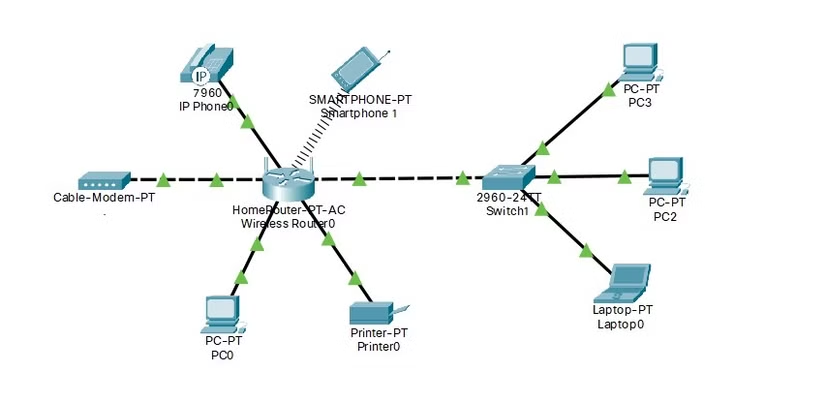
The first step to setting up your network is knowing what you are holding in your hand. Most home setups involve two main devices, although sometimes they are combined into one box. These are the Modem and the Router. It is crucial to know the difference because they do very different jobs.
Think of the internet like water flowing into your house from the street. The Modem is the main valve. It connects your home to your Internet Service Provider (ISP), whether that is through a cable wire, a fiber optic line, or a telephone line. Its only job is to bring the raw signal into your house and translate it into a language your devices can understand. The Modem usually has lights on the front for “Power,” “Online,” and “Send/Receive.”
The Router is the traffic cop. It takes that internet connection from the modem and splits it up so all your devices can use it at the same time. It creates the Wi-Fi bubble in your house. It makes sure that when you click a link on your phone, the webpage loads on your phone and not on your daughter’s iPad in the next room. If you have a “Gateway” or a “2-in-1” device from your ISP, it means the modem and router are shoved inside the same plastic box. If you have two separate boxes, you need to connect them together. The modem brings the internet in, and the router pushes it out to you.
Location is Everything: Where to Place Your Router for Best Speed
You have unpacked the boxes. Now, where do you put them? This is the single biggest mistake people make. Most people want to hide their router. They think it is ugly with its flashing lights and antennas, so they shove it in a closet, put it behind the TV, or hide it in a bottom drawer. This is a disaster for your internet speed.
Wi-Fi is radio waves. It is invisible light. Imagine your router is a bright lightbulb. If you put a lightbulb inside a wooden cabinet, how much light will reach the kitchen? Not much. Wi-Fi struggles to travel through solid objects. Metal is the worst enemy; a fridge or a metal filing cabinet will block the signal completely. Water is also bad, so don’t put the router next to a large fish tank. Thick brick or concrete walls are also difficult for the signal to penetrate.
For the best experience, your router needs to be out in the open. It should be in a central location in your house, preferably up high on a shelf. Radio waves travel down and out better than they travel up. If you put the router in the basement, the basement will have great internet, but the second-floor bedrooms will have none. If you put it in the living room, in the center of the home, the signal can reach every corner evenly. Treat your router like a piece of decoration. Let it breathe, and it will reward you with fast speeds.
The Physical Connection: Plugging In the Right Cables
Now that you have found the perfect spot, it is time to connect the wires. This part scares people, but it is actually just a matching game. You usually have three types of cables: a power cable, a coaxial or fiber cable (from the wall), and an Ethernet cable (looks like a thick phone cord).
Start with the modem. Find the cable coming out of the wall. If you have cable internet, this is a round, screw-on cable (coaxial). Screw it into the back of the modem tightly. If you have fiber, it might be a thin glass cable or an Ethernet cable coming from a box installed on your wall. Plug that into the port labeled “Internet” or “WAN” on your modem. Then, plug the modem into the power outlet. Watch the lights. It will take a few minutes to boot up. Wait until the “Online” or “Internet” light turns solid green or white.
Next, connect the router. Take the yellow or blue Ethernet cable that came in the box. Plug one end into the modem and the other end into the port on the router labeled “WAN” or “Internet.” It is often a different color from the other ports. Then, plug the router into the power outlet. Wait for it to turn on. You should see lights for “Power” and “Wi-Fi” start blinking. Congratulations, you have physically built the network. Now we just need to program it.
Accessing the Interface: How to Talk to Your Router
Your hardware is running, but it is not customized yet. It is broadcasting a generic Wi-Fi name with a password printed on a sticker on the bottom. You need to access the router’s “Brain” (the admin interface) to change this.
In the past, you had to use a computer. You would open a web browser and type in a weird number like “192.168.1.1” to find the router. You can still do this, and the sticker on the bottom of the router will tell you exactly what number to type and what the default username (usually “admin”) and password are.
However, most modern routers now come with a smartphone app. This is much easier. Look at the box or the instruction manual for a QR code. Scan it with your phone camera. It will take you to the App Store to download the setup app for your specific brand (like Linksys, Netgear, or Asus). Download the app and open it. It will usually find your router automatically via Bluetooth and walk you through the rest of the setup with pretty pictures and simple questions. If you don’t have a smartphone, use the browser method on a laptop connected to the router with a cable.
Setting Up Your Wi-Fi Name and Password
This is the fun part. You get to name your network. This name is called the “SSID.” It is what your neighbors will see when they search for Wi-Fi. You can call it “The Smith Family,” “FBI Surveillance Van,” or “Hogwarts Great Hall.” Have fun with it, but don’t use your home address or phone number for privacy reasons.
Next, you must set a password. This is critical. Do not leave the network open. If you do, neighbors can steal your internet, slowing it down, or hackers can use your connection to do illegal things that get traced back to you. You need a strong password. It should be at least 12 characters long and include a mix of letters and numbers.
While you are on this screen, you will see an option for “Security Type.” Always choose “WPA2” or “WPA3.” These are the modern standards for encryption. They scramble your data so that nobody can spy on what you are doing. Avoid “WEP,” which is an old standard that is very easy to break. Once you save these settings, the router will restart to apply the changes. Your phone will disconnect because the old network name is gone. You will have to go into your phone’s Wi-Fi settings, find your new funny name, and type in your new password to reconnect.
Why Firmware Updates Are Critical for Security
Once you are online, the router app or web interface might pop up a message saying “Firmware Update Available.” It is very tempting to click “Skip” because you just want to watch Netflix. Please, do not skip this.
Firmware is the operating system that runs inside the router. Just like your phone or laptop needs updates, your router needs them too. Manufacturers release these updates to fix bugs that make the internet slow, but more importantly, to patch security holes. Hackers are constantly trying to find ways to break into home networks. When they find a hole, the manufacturer writes a “patch” to close it.
If you are running old firmware, your router has open holes that hackers know about. Updating the firmware closes those holes. It usually takes about five minutes. The internet will go down while it updates, and the router will reboot. Use this time to grab a drink. Some modern routers have an “Auto-Update” feature. Turn this on. It ensures that your router will update itself in the middle of the night while you are sleeping, so you are always protected without having to lift a finger.
Understanding Wi-Fi Bands: 2.4GHz vs. 5GHz
When you look at your Wi-Fi settings, you might see two networks with your name. One might say “SmithFamily” and the other “SmithFamily_5G.” Or, modern routers might just show one name but handle this secretly in the background. These are the two different “radio stations” your router broadcasts on.
The 2.4GHz band is the older standard. It is like a slow, heavy truck. It travels very far. It can go through walls and floors easily. However, it is not very fast, and it is crowded. Your microwave, your baby monitor, and your Bluetooth devices all use this same frequency, which can cause traffic jams.
The 5GHz band is like a sports car. It is incredibly fast. It can handle 4K streaming and gaming without breaking a sweat. However, it has a short range. It struggles to go through thick walls. So, which one do you use? Connect your stationary devices—like your Smart TV or gaming console—to the 5GHz band if they are in the same room as the router. Connect your phone and laptop to the 5GHz band as well for speed. Use the 2.4GHz band for “Smart Home” devices like lightbulbs, smart plugs, or older devices that are far away in the garage or backyard. Many new “Mesh” routers combine these into one name and automatically switch your device to the best one depending on where you are standing.
Extending Your Reach: Mesh Systems and Extenders
If you live in a large house, or a house with thick brick walls, you might find that you have “Dead Zones.” These are rooms where the Wi-Fi just disappears. You walk into the kitchen, and your music stops. You go to the back bedroom, and you can’t load a webpage. One single router, no matter how powerful, cannot cover a mansion.
In the past, people bought “Range Extenders.” These are little plugs that catch the signal and repeat it. They are cheap, but they are often frustrating. They cut your speed in half, and they create a separate network (like “SmithFamily_EXT”) that you have to manually switch to.
The better solution today is a “Mesh Wi-Fi System.” This is a team of routers working together. You have a main unit plugged into the modem, and then “satellite” units placed around the house. They talk to each other wirelessly to create one giant, seamless blanket of Wi-Fi. Your phone automatically switches to the closest unit without you noticing. If you are setting up a Mesh system, place the satellite units about halfway between the main router and the dead zone. They need to be close enough to the main router to get a good signal to pass along. The app will usually tell you if the placement is good.
Connecting All Your Devices: A Digital Roll Call
Now that the network is solid, secure, and fast, you need to connect everything. This can be a chore if you have a lot of gadgets. Start with the most important ones: your phone and your computer. Verify the speed. Go to a site like Speedtest.net and run a test. Make sure you are getting the speed you pay for.
Then, move to the entertainment devices. Connect the TV, the streaming stick (Roku, Fire Stick), and the gaming consoles. If these devices are close to the router, consider plugging them in with an Ethernet cable instead of using Wi-Fi. A wired connection is always faster and more stable than wireless. It frees up the Wi-Fi airwaves for your mobile devices.
Finally, connect your smart home gear. This includes smart speakers (Alexa, Google Home), smart thermostats, doorbells, and cameras. These devices can be tricky. They often require you to be on the 2.4GHz band to set them up. If the setup fails, try moving your phone further away from the router until it switches to the 2.4GHz band, and then try the setup again. Once everything is connected, walk around the house with your phone. Check the signal in every room. If you find a weak spot, adjust the antennas on the router or move the mesh satellite slightly.
Troubleshooting: What to Do When the Lights Go Red
Even with a perfect setup, things can go wrong. Maybe a storm knocks out the power, or the ISP has an outage. If you wake up one morning and the internet is dead, do not panic. Look at the lights on the modem and router.
If the “Internet” or “Online” light on the modem is red or blinking, the problem is coming from the street. It is an issue with your Service Provider. Check their website on your phone (using cellular data) to see if there is an outage in your area. If there is, you just have to wait.
If the modem lights are green but the router lights are red, the problem is in your house. The first step is always the “Power Cycle.” Unplug both the modem and the router from the wall. Wait a full 30 seconds. This wait is important to drain the power completely. Plug in the modem first. Wait two minutes for it to fully boot up. Then, plug in the router. Wait two minutes. This reboot fixes 90% of connection problems. It clears out the digital cobwebs and forces the devices to reconnect. If that fails, check your cables. Did the cat chew through the Ethernet cord? Is the coax cable loose? Tighten everything. If you still have issues, call your ISP support. You can tell them, “I have already power cycled my equipment,” which will save you 20 minutes of them reading from a script.
Conclusion: You Are Now the Network Administrator
Setting up your home network can feel intimidating because it is invisible. You cannot see the data flying through the air, so it is hard to trust it. But by following these steps—understanding your hardware, placing it correctly, securing it with a password, and keeping it updated—you build a network that is robust and reliable.
You have taken a chaotic pile of electronics and turned it into a utility that powers your life. You are no longer at the mercy of a blinking red light. You know how to fix it. You know why it works. So, go ahead and stream that 4K movie. Video call your family without the picture freezing. Enjoy the freedom of a perfectly set up home network. You earned it.