
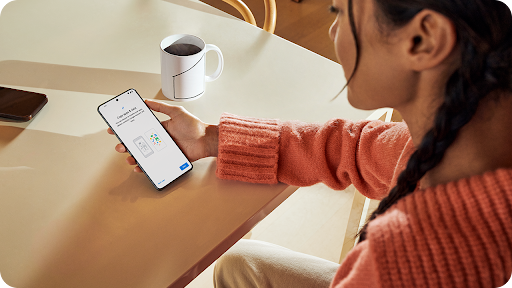
There is a very specific feeling of joy that comes with getting a new gadget. Whether it is a sleek new smartphone that just hit the market or a powerful tablet for watching movies in bed, the experience usually starts the same way. You hold the box in your hands, admiring the packaging. You carefully peel off the plastic wrap, lift the lid, and see your new device sitting there, pristine and untouched. It smells like new electronics, a scent that promises speed, excitement, and a fresh start. But once the excitement of the unboxing fades, reality sets in. You press the power button, and you are greeted by a setup screen. Suddenly, you aren’t playing with a new toy; you are doing work.
For many people, setting up a new mobile device is stressful. It feels like a test. There are passwords to remember, settings to choose, and a million little “Yes or No” questions that you aren’t quite sure how to answer. If you do it wrong, you worry that your battery will drain too fast, your data won’t be safe, or you will lose those precious photos from your old phone. But it doesn’t have to be this way. Setting up a device is actually a logical, step-by-step process. Think of it like moving into a new house. You wouldn’t just throw your boxes in the middle of the floor and start sleeping there. You would clean the floors, unpack your clothes, and organize the kitchen. When you take the time to set up your digital home correctly, it becomes a comfortable, safe, and efficient place to live. This guide is here to walk you through that process. We will cover everything you need to know to take a device from “in the box” to “ready for action,” using simple language that anyone can understand.
Unboxing and Preparing Your Device Before You Even Turn It On
The setup process actually begins before you even press the power button. It starts with the unboxing. When you open the box, resist the urge to just rip everything apart. Take a moment to look at what is inside. You will usually find the device itself, a charging cable, and maybe a power brick (though these are becoming rarer these days). You might also find a small metal tool if it is a phone; this is for the SIM card. Keep the box and all these accessories together in a safe place. Do not throw the box away immediately. If the device turns out to be defective in the first week, you will need that box to return it easily.
Before you start the software setup, you need to provide power. Most devices come with a little bit of battery charge, usually around fifty percent, but it is highly recommended to plug it in and let it charge to one hundred percent before you do anything else. Setting up a device uses a lot of energy. The processor is working hard, the screen is on constantly, and the Wi-Fi radio is downloading huge files in the background. If the battery dies in the middle of a system update or data transfer, it can cause serious software errors that are hard to fix. So, plug it in, go make yourself a cup of coffee, and let it get a full tank of gas. This is also the perfect time to find your Wi-Fi password. You are going to need it in about five minutes, and nothing kills the mood like hunting for a sticky note on the back of a dusty router while your new device waits for you.
Navigating the Setup Wizard and Connecting to the Internet
Once your device is charged and you turn it on, the first thing it will ask for is a language and a region. Pick your language, and then it will ask for a Wi-Fi network. Select your home network and type in that password you just found. It is much better to use Wi-Fi than your mobile data plan for this part. The setup process downloads gigabytes of data, and if you have a limited data plan, you could use it all up in the first hour. Wi-Fi is faster and more stable, ensuring that the large files download without corruption.
After connecting, the device will almost immediately try to “phone home” to the manufacturer’s servers. This leads to the most important, and often the most boring, part of the setup: The Update. Your new device might have been sitting in a warehouse for three or even six months before you bought it. In those months, the manufacturer has likely discovered security holes, fixed bugs, and improved the battery life software. The device will likely say “Update Available.” Do not skip this. I repeat, do not skip this. It is tempting to say “Remind me later” because you want to start using the phone immediately, but doing the update now is vital. It ensures that you are building your new digital life on a solid foundation. If you set up the phone on old software, you might run into glitches that have already been fixed. Let the update download and install. The device will restart. It might take ten or fifteen minutes. Use this time to relax, knowing that you are making your device safer and faster.
Securing Your Digital Life with Accounts and Passwords
After the update, the device will ask you to sign in. If it is an Apple device like an iPhone or iPad, you use an Apple ID. If it is an Android device like a Samsung or Pixel, you use a Google Account. This account is the master key to your device. It controls your app downloads, your backups, your contacts, and your security.
If you already have an account, sign in. If you don’t, create one. When you type in your password, take a moment to think. Are you using the same password you use for everything else? If so, stop. This is a new device, and it deserves a secure start. If a hacker guesses that one password, they own your new device remotely. Create a strong password that is a mix of letters and numbers. Better yet, if the device offers to save the password for you using a built-in password manager, let it.
You will also likely be asked to set up biometrics. This means Face ID, Touch ID, or a fingerprint scanner. Do this now. It seems like a futuristic gimmick, but it is actually a massive time saver. It allows you to use a very complicated, secure password but never actually have to type it. You just look at your phone or touch the sensor, and it unlocks. It is the perfect balance of high security and high convenience. Also, enable “Two-Factor Authentication” if asked. This means if someone tries to log in as you on a new computer, you get a text message code to confirm it is really you. It is one extra step that blocks almost all hacking attempts.
The Big Decision: Transferring Data or Starting Fresh
Now comes the fork in the road. The device will ask you: “Do you want to restore from a backup?” or “Do you want to set up as new?” This is a big decision that depends on the state of your old device.
If you choose “Restore from Backup” or “Transfer Data,” the device will try to copy everything from your old phone or tablet. It will bring over your photos, your text messages, your apps, and even your wallpaper. This is the path of least resistance. It is great if you loved your old setup and just want a faster version of it. You can usually do this by placing your old device next to the new one (wireless transfer) or by connecting them with a cable. Just make sure both devices are fully charged before you start, as this can take an hour or more if you have a lot of photos.
However, consider the “Set Up as New” option. Over the years, our phones and tablets accumulate digital junk. We have apps we haven’t opened in five years. We have blurry screenshots we don’t need. We have old settings files that might be slowing things down. Setting up as new is like moving into a new house and only unpacking the things you actually use. It gives you a clean slate. Your device will be faster and less cluttered. You can still download your photos from the cloud later, but you won’t be dragging five years of digital baggage with you. If your old device was slow, buggy, or had poor battery life, definitely choose “Set Up as New.” It fixes almost all lingering performance issues.
Removing Bloatware and Installing Essential Apps
Now that the system is clean and your account is active, you can start installing the tools you actually need. Open the App Store or Play Store. Start with the “Big Three” categories: Communication, Productivity, and Entertainment. For Communication, get WhatsApp, Zoom, or whatever you use to talk to people. For Productivity, get your email app, your calendar, and maybe a note-taking app. For Entertainment, get Spotify, Netflix, or your e-reader app. Do not download everything you have ever used. Just download what you need for this week. You can always get the others later.
While you are doing this, look out for “Bloatware.” Bloatware is software that comes pre-installed on the device because a company paid the manufacturer to put it there. You might find a random antivirus trial, a card game, or a shopping app you never asked for. These take up space and slow down your machine. Right-click or long-press on them and select “Uninstall” or “Remove.” If you can’t uninstall them (some are permanent), you can usually “Disable” them or hide them in a folder so you never have to see them. A lean device is a fast device.
Customizing the Display and Interface for Comfort
Once you are past the login screens and downloads, you will land on the “Home Screen.” It will look generic. It will have the default wallpaper and the standard icons. Now it is time to make it yours. This isn’t just about vanity; it is about usability and comfort.
Start with the Display settings. Do you prefer “Light Mode” (bright white backgrounds) or “Dark Mode” (black and grey backgrounds)? Dark mode is easier on the eyes at night and can save battery power on modern screens. Look at the text size. If you find yourself squinting to read the menus, make the text larger. There is no shame in this; the device is there to serve you, not to test your vision. You can also adjust the “Auto-Lock” or “Screen Timeout” setting. By default, it might turn off after 30 seconds, which is annoying if you are reading a recipe. Change it to two or five minutes.
Next, organize your apps. On a phone, put the four apps you use every single day in the “Dock” (the bottom row). Usually, this is Phone, Messages, Browser, and maybe Camera or Email. Delete the icons you don’t use from the home screen. Change the wallpaper to a photo of your family, your pet, or a place you love. When you turn on the device and see an image that makes you smile, it changes your relationship with the technology. It becomes personal.
Managing Notifications and Sounds to Reduce Stress
Out of the box, most smartphones and tablets are annoying. They beep, buzz, and flash for every little thing. Every email, every news alert, every game update wants your attention. If you don’t control this now, your new device will become a source of stress rather than a helpful tool.
Go into the “Notifications” settings. Be ruthless. Ask yourself: “Do I need to know about this the exact second it happens?” You probably need to know about text messages and phone calls immediately. You probably don’t need to know that a random person liked your photo on Facebook or that a game has a sale on coins. Turn those off. Allow notifications only for communication apps and critical alerts.
Then, look at the “Sound” settings. Choose a ringtone that you actually like, or at least one that doesn’t make you jump out of your skin. Even better, learn how to use “Do Not Disturb” or “Focus Modes.” You can set your device to automatically silence itself at night so you can sleep, or during work hours so you can focus. Configuring these boundaries early prevents the device from taking over your life.
Setting Up Cloud Backups and Security Features
You have spent hours setting up this device. It is perfect. Now imagine you drop it in a lake tomorrow. It is a painful thought, but it happens. The only thing that stops a broken device from being a tragedy is a backup.
Go to your cloud settings (iCloud, Google One, OneDrive) and turn on “Automatic Backups.” This means that every night when you plug your device into power and Wi-Fi, it will silently copy your new data to the cloud. You don’t have to do anything. It just happens. If you lose your phone, you buy a new one, log in, and everything comes back.
Also, turn on “Find My Device.” This uses the GPS in the device to track its location. If you leave your tablet at a coffee shop or your phone slips between the couch cushions, you can log into a website and see exactly where it is. You can even make it play a loud sound so you can find it. In a worst-case scenario, if it is stolen, you can use this feature to remotely erase all your data to protect your identity.
Conclusion: Enjoying Your Optimized Device
Congratulations! You have successfully navigated the maze of smartphone or tablet setup. You started with a generic machine in a box, and now you have a personalized, secure, and high-performance tool. You have removed the junk that slows it down. You have installed the tools that make you productive. You have secured your data against hackers and accidents.
Now, take a deep breath and enjoy it. Open your browser and notice how fast pages load. Open a photo and see how crisp the screen looks. Listen to some music or play a game. You have done the hard work, and now you get to reap the rewards. Remember that a device is like a car; it needs a little maintenance now and then. Check for updates once a month, and keep an eye on your storage space. But for now, your machine is in perfect shape. Whether you are using it to stay in touch with family, conquer your work emails, or just relax with a movie, you can do it with confidence knowing that your setup is rock solid. Welcome to your new digital companion.