
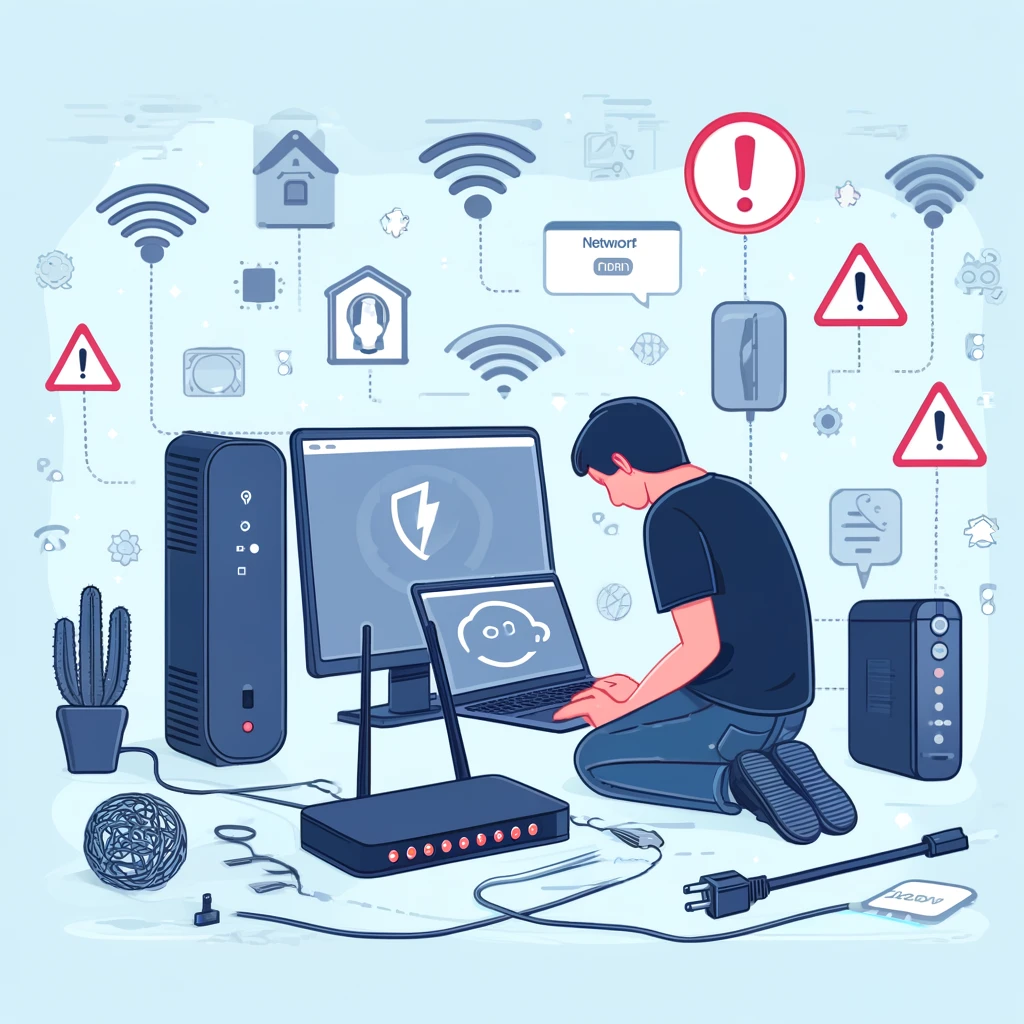
We have all been there. You are right in the middle of the most important scene of a movie, or you are about to win a high-stakes video game match, or perhaps you are on a critical video call with your boss. Suddenly, everything freezes. The audio starts to sound like a robot. The picture turns into a blocky mess. And then, the most dreaded symbol in the modern world appears: the spinning circle of death. Buffering. Disconnected. No Internet.
In 2026, access to the internet is not just a luxury; it is a utility like water or electricity. We need it to work, to learn, to bank, and to relax. When it stops working, it feels like the whole house grinds to a halt. The frustration is real, and it often leads to us shouting at a plastic box in the corner of the room. But here is the good news: most network problems are solvable. You do not need to be a computer scientist or an IT wizard to fix them. Most of the time, the issue is something simple, like a bad wire, a confused router, or a thick wall blocking the signal. This guide is going to walk you through the world of network troubleshooting. We will use simple, plain English to explain why your internet breaks and, more importantly to give you the tools to fix it yourself so you can get back online fast.
Understanding the Basics Why Is My Internet So Slow
Before we start pressing buttons and pulling cables, we need to understand what is actually happening. The internet is essentially a massive web of cables traveling around the world, connecting servers (giant computers) to your home. Your “Modem” is the door that brings the internet into your house. Your “Router” is the traffic cop that directs that internet to your phone, your laptop, and your TV.
When you say the internet is “slow,” it usually means one of two things: Low Bandwidth or High Latency. Think of Bandwidth like a water pipe. If you have a big pipe, you can get a lot of water (data) through it at once. If you have a skinny pipe, it takes a long time to fill a bucket (download a movie). If your family is trying to stream three 4K movies at once on a skinny pipe, everything slows down. Latency, often called “Ping,” is the travel time. It is how long it takes for a signal to go from your computer to the server and back. If you have high latency, there is a delay. You click a button, and two seconds later, the action happens. This is a nightmare for gamers and video calls. Knowing the difference helps you fix the problem. If it is bandwidth, you need to turn off some devices. If it is latency, you need to fix the signal strength.
The Magic of Restarting Why Rebooting Your Router Actually Works
It is the oldest joke in the tech world. You call support, and they ask, “Have you tried turning it off and on again?” You roll your eyes. But the truth is, this works 90% of the time. Your router is a tiny computer. It has a processor, memory, and an operating system, just like your laptop. And just like your laptop, it gets tired.
As your router runs for weeks or months without a break, it accumulates tiny errors. Its memory gets full of old data logs. It might overheat slightly. It gets confused about which device is which. When you restart it, you are wiping its short-term memory. You are clearing out the “ghosts” in the machine. It allows the router to cool down and start fresh.
To do this properly, do not just press the button quickly. Unplug the power cord from the wall. Wait for at least 30 seconds. This wait is important because it allows the capacitors (little batteries inside) to drain completely, ensuring the machine actually shuts down. Then plug it back in. It will take a few minutes to boot up and reconnect to your Service Provider (ISP). Once all the lights are green again, check your speed. You will often find that this simple act has solved the problem completely.
Signal Strength 101 Where to Place Your Router for the Best Speed
Wi-Fi is radio waves. It is invisible light. Imagine your router is a lightbulb. If you put a lightbulb inside a metal cabinet in the basement, how much light will reach your bedroom on the second floor? Not much. Yet, people often hide their routers in cupboards, behind TVs, or on the floor because they think they are ugly. This is the number one cause of bad Wi-Fi.
For the best signal, your router needs to be in a central location. It should be high up, like on a shelf or mounted on the wall, because radio waves travel down and out better than they travel up. You also need to avoid obstacles. Physical objects kill Wi-Fi. The worst enemies are metal (like your fridge), water (like a large fish tank), and thick concrete or brick walls. If your router is next to the microwave, that is also a problem. Microwaves operate on the same 2.4GHz frequency as older Wi-Fi signals. When you turn on the microwave to heat up lunch, it can literally jam your Wi-Fi signal like a military weapon. Move the router out into the open. Let it breathe. If you can see the router, the router can see your device.
Wi-Fi vs Ethernet When to Ditch the Wireless for a Cable
We love Wi-Fi because it is convenient. We can walk around the house with our phones and stay connected. But Wi-Fi will never be as fast or as stable as a physical wire. A wired connection, using an “Ethernet Cable,” is the gold standard of connectivity.
Wi-Fi is subject to interference. Your neighbor’s Wi-Fi, your baby monitor, and even your Bluetooth headphones are all fighting for space in the airwaves. This causes “packet loss,” where tiny bits of data get lost in the noise and have to be resent. This causes lag. An Ethernet cable is a direct highway. There is no interference. The data goes straight from the router to your computer.
If you are working from home and your Zoom calls keep dropping, buy a long Ethernet cable and plug your laptop directly into the router. If you are a gamer and you keep lagging out of matches, go wired. It is not always pretty to have a cable running across the floor, but for stationary devices like desktop computers, game consoles, and smart TVs, it is the best way to guarantee a perfect connection. It also frees up the Wi-Fi airwaves for your mobile devices, making them faster too.
The Silent Killers Background Apps and Bandwidth Hogs
Sometimes the call is coming from inside the house. You might think your internet is broken, but actually, it is working perfectly—it is just being used by something else. We call these “Bandwidth Hogs.”
Imagine your internet connection is a pizza. You want a slice. But before you get to the table, your computer decides to download a massive Windows update in the background. That update just ate four slices of pizza. Then, your phone decides to back up all your photos to the cloud. That takes another three slices. Suddenly, there is only one slice left for you, and your movie starts buffering.
You need to check your devices. On Windows, open the Task Manager. On Mac, open the Activity Monitor. Look at the “Network” column. It will show you exactly which apps are using the internet right now. You might find that Steam is downloading a 50GB game update, or Dropbox is syncing thousands of files. Pause these downloads when you need the speed for something else. Also, check for “Zombie Devices.” These are old tablets or smart home gadgets that are connected to Wi-Fi but you never use. They might be sitting in a drawer silently updating and slowing you down. Disconnect them.
Updating Your Drivers The Hidden Software Fix
Your computer is hardware (plastic and metal). Your operating system is software. To talk to each other, they use a translator called a “Driver.” Your Wi-Fi card has a driver. Your Ethernet port has a driver. If this driver is old or corrupted, the translation fails. Your computer might be physically connected to the internet, but the software doesn’t know how to read the signal.
This often happens after you update Windows or macOS. The operating system gets new features, but the old driver doesn’t understand them. The result is a connection that drops randomly or runs very slowly. To fix this on Windows, go to the “Device Manager.” Find “Network Adapters.” Right-click on your Wi-Fi card and select “Update Driver.” It will search the internet for the newest version. If you can’t get online to search, you might need to use a different computer to download the driver from the manufacturer’s website (like Dell, HP, or Intel), put it on a USB stick, and install it on the broken computer. On Macs, these updates usually come automatically with system updates, so just make sure your macOS is up to date. Keeping your drivers fresh ensures that your hardware is speaking the same language as the network.
DNS Settings Changing Your Digital Phonebook for Faster Browsing
Here is a trick that makes you feel like a hacker but is actually very simple. It involves changing your DNS. DNS stands for “Domain Name System.” It is the phonebook of the internet. When you type “www.google.com” into your browser, computers don’t understand those words. They only understand numbers (IP addresses). Your computer asks a DNS server, “What is the number for Google?” The server replies, “It is 142.250.190.46.” Your computer then connects to that number.
By default, you use your Internet Service Provider’s (ISP) DNS server. Often, these are slow, outdated, and sometimes they even track where you go to sell your data. Every time you click a link, you are waiting for that slow phonebook lookup. You can switch to a faster, public phonebook. Google offers a free one (8.8.8.8 and 8.8.4.4). Cloudflare offers an even faster one (1.1.1.1). Changing this setting in your computer’s network preferences can make web pages load noticeably snappier. It doesn’t increase your download speed, but it eliminates that slight pause before a website appears. It is a free upgrade that takes five minutes.
Extending Your Reach Mesh Networks and Range Extenders Explained
If you live in a large house, or a house with thick brick walls, one single router might not be enough. You might have “Dead Zones”—rooms where the signal just disappears. You walk into the kitchen and your music stops.
In the past, people bought “Range Extenders.” These are little plugs that catch the Wi-Fi signal and repeat it. They are cheap, but they aren’t great. They create a second network (like “Home-WiFi-EXT”) that you have to switch to manually. They also cut your speed in half because they have to listen and talk at the same time. The modern solution is a “Mesh Network.” This is a team of routers working together. You have a main unit plugged into the modem, and then “satellite” units placed around the house. They talk to each other to create one giant blanket of Wi-Fi. Your phone seamlessly switches to the closest unit without you noticing. If you have a dead zone, you just buy another satellite and plug it in there. Mesh systems (like Eero, Orbi, or Google Nest) are more expensive, but they are the only reliable way to cover a large home with fast, consistent internet.
When to Call the Pros Recognizing ISP Outages and Hardware Failures
You have restarted the router. You have checked the cables. You have scanned for viruses. You have moved the router to a better spot. And the internet is still broken. At this point, you have to accept that the problem might not be you. It might be them.
Internet Service Providers have outages. A construction crew might have cut a fiber optic cable down the street. A storm might have knocked out a cell tower. Before you spend hours troubleshooting, check your ISP’s website or app using your phone’s data. Most of them have an “Outage Map.” If you see a big red blob over your neighborhood, stop fixing things. There is nothing you can do but wait. Go read a book.
If there is no outage, your hardware might be dead. Routers don’t last forever. If your router is more than five years old, it might just be worn out. The technology inside it (Wi-Fi 5 vs Wi-Fi 6) might be too old to handle the speeds you are paying for. If you rent your router from the ISP, call them and ask for a replacement. If you own it, it might be time to buy a new one. A failing router often drops connections when it gets hot or under heavy load. If you have to restart it every day, it is dying.
Conclusion Getting Back to What Matters
Network and connectivity issues are frustrating because they feel invisible. You cannot see the data moving through the air, so it is hard to know why it stopped. But by following a logical process, you can solve almost any issue. Start with the easy stuff: restart the router and check the cables. Then move to the environment: check for obstacles and interference. Finally, look at the software: check for background hogs and update your drivers.
Most of the time, the fix is free and simple. It just requires a little patience. Remember that the internet is a complex chain of events, and if one link is weak, the whole chain breaks. By maintaining your equipment and understanding how it works, you can build a robust home network that handles movies, games, and work without breaking a sweat. So, go ahead and reboot that router. Your fast internet is waiting for you on the other side.