
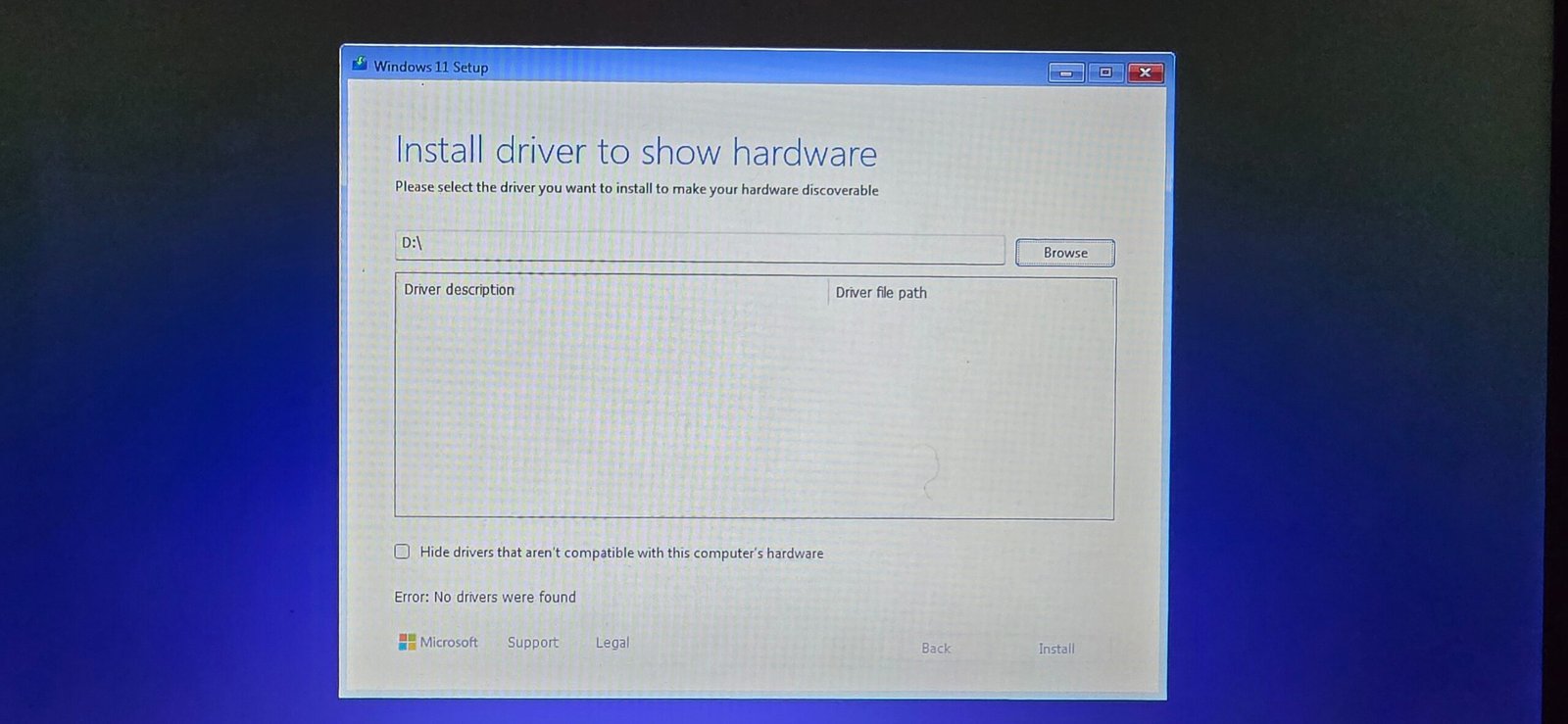
You have just finished installing a fresh operating system on your computer. Whether it was Windows, Linux, or a fresh reinstall to fix problems that had been building up for months, that moment when the new desktop appears feels clean and satisfying. The computer is fast, the storage is organised, and everything looks the way it did on day one.
And then you realise the sound is not working. Or the screen resolution is stuck at something that looks wrong. Or your WiFi will not connect. Or the graphics feel sluggish and unresponsive in a way that was not there before. You have entered the world of missing drivers and it is one of the most frustrating experiences that comes with setting up a fresh operating system if you do not know what you are doing.
Drivers are the essential software that allows your operating system to communicate with the hardware components in your computer. Without the right drivers, hardware either does not work at all or works in a limited, degraded way that does not reflect what the hardware is actually capable of. After a fresh OS installation, getting your drivers installed correctly is one of the most important steps between having a computer that technically boots and having one that is fully functional and performing as it should.
This blog is going to walk you through everything you need to know about driver installation after an OS setup. What drivers are and why they matter, which ones are critical to install first, how to find the right drivers for your hardware, how to install them correctly, and how to keep them updated over time. All of it in plain, practical language that anyone can follow regardless of their technical background.
What Drivers Are and Why They Matter
Before we get into the process, it helps to understand what a driver actually is because the word gets used frequently without much explanation.
A driver is a piece of software that acts as a translator between your operating system and a hardware component. Your operating system speaks one language. Your graphics card, your WiFi adapter, your audio chip, your printer, and every other piece of hardware all speak their own technical languages. A driver translates between the two so that when your operating system wants to display something on screen, it can communicate that instruction to the graphics card in a way the graphics card understands.
When you install a fresh operating system, it includes a set of generic drivers that provide basic functionality for common hardware types. These generic drivers are enough to get the system started but they do not unlock the full capabilities of your specific hardware. A generic graphics driver can display your desktop but cannot enable the full resolution, the smooth frame rates, or the advanced features your specific graphics card supports. A generic audio driver might produce sound but without the specific features and settings your audio hardware provides.
Manufacturer-specific drivers are written specifically for particular hardware models and unlock everything that hardware is capable of. Installing them replaces the generic versions and immediately improves how the hardware performs. In some cases, like WiFi adapters and Bluetooth hardware, the generic driver provides no functionality at all and the hardware simply does not work until the correct manufacturer driver is installed.
The Order of Driver Installation: Why Sequence Matters
When installing drivers after a fresh OS setup, the order in which you install them matters and getting it right avoids some common problems.
The first driver to install is your chipset driver. The chipset is the core hardware on your motherboard that controls communication between the processor, memory, storage, and all other components. The chipset driver improves this communication and often helps the operating system correctly identify other hardware components that are waiting for their own drivers. Installing the chipset driver first makes subsequent driver installations go more smoothly because the system can properly recognise what is being installed.
After the chipset driver, install your graphics driver. The graphics driver controls your display and is one of the most important drivers on the system. After a fresh OS installation, your display is typically running at a reduced resolution and without the full capabilities your monitor and graphics card support together. Installing the correct graphics driver restores proper resolution, enables multiple monitor support if you use it, and activates the performance features needed for games, video playback, and graphics applications.
Audio drivers come next. Most operating systems detect basic audio hardware and provide limited sound functionality through generic drivers, but the full features of your audio hardware including surround sound, headphone detection, microphone settings, and audio enhancement options require the manufacturer-specific driver.
Network and WiFi drivers are critical because without them you may not have internet access at all, which makes downloading other drivers difficult. If your WiFi is not working after an OS installation, you may need to use a wired ethernet connection or transfer the WiFi driver from another computer using a USB drive to get connected before you can download anything else.
After these priority drivers, install any remaining device-specific drivers for components like your webcam, Bluetooth adapter, card reader, touchpad on laptops, and any external devices you use regularly. Peripheral drivers for printers, scanners, drawing tablets, and other connected devices come last as they are typically lower priority for basic system function.
Finding the Right Drivers: Where to Look
Knowing where to find the correct drivers for your specific hardware is one of the most practically important parts of this whole process. There are several sources and knowing which to use for different situations saves a lot of time and frustration.
The manufacturer’s official website is always the best source for drivers. For graphics cards, Nvidia and AMD both have dedicated driver sections on their websites where you can search by your specific GPU model and download the latest driver directly. For audio, network, and other components, the manufacturer of your motherboard or laptop is the primary source because they package and test drivers specifically for their hardware configurations.
For laptops and branded desktop computers from manufacturers like Dell, HP, Lenovo, and ASUS, the manufacturer’s support website is where you want to go. These sites have a section where you enter your specific model number and they provide a complete list of all recommended drivers for that exact model. This is particularly useful for laptops because the hardware is often customised and generic component drivers do not always work as well as the manufacturer-specific versions.
For custom-built desktop computers, you need to identify each component separately and find drivers from the respective manufacturers. Your motherboard manufacturer’s website provides chipset, audio, and network drivers. Your graphics card manufacturer provides GPU drivers. Other components have their own manufacturer driver pages.
Windows Update is another source of drivers that is often overlooked. After connecting to the internet, Windows Update can find and install drivers for many common hardware components automatically. While Windows Update drivers are not always the absolute latest versions, they are reliably compatible and cover many basic driver needs. Running Windows Update early in the setup process often installs several drivers automatically before you need to manually source them.
Device Manager in Windows provides a useful view of which hardware is properly recognised and which is still waiting for a driver. Hardware with missing or incorrect drivers shows a yellow warning triangle icon. Right-clicking these items and selecting Update Driver gives Windows the opportunity to search for the correct driver automatically or allows you to point it to a driver file you have downloaded manually.
Step by Step: Installing Drivers Correctly
The actual process of installing drivers is straightforward once you have the right files but following the correct steps avoids common problems.
Download the driver installer from the official source. Save it somewhere easy to find, a dedicated folder on your desktop or downloads directory works well. Before running the installer, check whether your system has any pending Windows updates and install those first if possible, as some driver installations go more smoothly on a fully updated system.
Close other running programmes before installing drivers, particularly graphics drivers. Graphics driver installation often requires a brief moment where the display goes black as the new driver takes over, and having other programmes open during this process can occasionally cause conflicts.
Run the installer as administrator by right-clicking the downloaded file and selecting Run as Administrator. This ensures the installer has the permissions it needs to make system-level changes.
Follow the installation wizard steps. Most driver installers walk you through the process with clear options. For graphics drivers specifically, choosing the Express or Recommended installation option is appropriate for most users. The Custom option is available for users who want to exclude specific components but is not necessary for a standard fresh setup.
Restart your computer when prompted. Driver installations often require a restart to complete properly and skipping the restart can lead to the driver not working correctly or causing system instability. Even if the system does not prompt you to restart, restarting after installing important drivers like graphics and chipset drivers is good practice.
After restarting, verify that the driver installed correctly. For graphics drivers, checking that your display resolution is now correct and that the appropriate control panel for your GPU, Nvidia Control Panel or AMD Radeon Software, is accessible confirms successful installation. For audio drivers, playing a sound and checking that the audio control panel has the expected options confirms the audio driver is working. For network drivers, confirming WiFi networks are visible and connectable confirms that driver is functioning.
Laptop Specific Considerations
Laptops have some driver considerations that are different from desktop computers and worth addressing specifically.
Laptop touchpad drivers enable the advanced gestures and settings that make touchpad use comfortable. Without the correct touchpad driver, you typically get only basic cursor movement without any multitouch gestures. Synaptics, Elan, and Alps are common touchpad manufacturers and their drivers are usually available through the laptop manufacturer’s support site.
Laptop function key drivers or utility software from the manufacturer enable the keyboard shortcuts that control screen brightness, volume, keyboard backlighting, and other laptop-specific features. On many laptops these keys simply do not work without this utility software installed.
Battery management software from laptop manufacturers often includes features that extend battery lifespan through controlled charging, usage statistics, and power management profiles. While not strictly a driver, this software is part of the complete driver package for many laptop models and is worth installing.
Thermal management drivers ensure that the processor and other components throttle correctly under load and that cooling systems operate as designed. Without these, a laptop may run hotter than it should or may not manage its power consumption efficiently.
Keeping Drivers Updated Over Time
Installing drivers after a fresh OS setup is not a one-time event. Keeping drivers updated is an ongoing maintenance task that is worth doing regularly.
Graphics drivers in particular are updated frequently, often in conjunction with new game releases or to fix bugs and performance issues in existing games and applications. Nvidia GeForce Experience and AMD Radeon Software both provide notifications when new graphics driver versions are available and allow one-click updating from within the application.
For other drivers, checking the manufacturer’s website every few months or using Windows Update to look for driver updates is a reasonable approach. Windows Update often distributes driver updates for common hardware components and running it periodically ensures you do not fall significantly behind on important updates.
A word of caution about third-party driver update utilities that promise to automatically scan and update all your drivers. Some of these tools are legitimate but many in this category are either ineffective, install incorrect drivers, or carry unwanted software. Sticking to official manufacturer sources and Windows Update for driver management is safer and more reliable than relying on third-party automation for this task.
If a driver update causes problems, you can always roll back to the previous version. In Windows Device Manager, right-clicking a device and selecting Properties, then Driver, shows you the option to Roll Back Driver if a previous version was installed. This is reassuring to know when you are hesitant about updating a driver that is currently working well.
Conclusion
Driver installation after an OS setup is one of those things that feels technical and daunting before you understand it and becomes fairly straightforward once you do. The principles are simple. Install chipset drivers first, then graphics, then audio, then network, then everything else. Use official manufacturer sources rather than third-party sites. Follow the installation steps properly including the restart. Verify that each driver is working correctly before moving on.
The investment of an hour or two in getting drivers properly installed immediately after a fresh OS setup pays back in a computer that works fully as it was designed to. The frustrations of missing audio, wrong display resolution, non-functional WiFi, and sluggish graphics are all preventable with the right drivers in place.
Keep your drivers reasonably current over time, particularly your graphics drivers if you use your computer for gaming or video production, and use official sources for any updates. Check Device Manager occasionally to confirm that everything is properly recognised and working without warnings.
A well-configured computer with all its drivers correctly installed is a genuinely different experience from one with generic or missing drivers. It is faster, more stable, and more capable. Getting your drivers right is not the glamorous part of setting up a new or freshly installed computer but it is one of the most impactful things you can do to make that computer work the way it was built to work.
Take the time to do it properly. Your daily computing experience will be noticeably better for it.